
Administration
DNS records & email authentication
Send feedbackSending mail on your own domain takes more than creating a mailbox. Receiving providers like Gmail, Outlook, and Yahoo check that your domain has authorized NevTan Mail to send on its behalf. Until those DNS records are published and verified, your messages can be rejected or filed as spam — even though NevTan Mail accepted and sent them.
Sending can succeed while delivery fails
These are two different things. NevTan Mail accepting your message means it left our servers. Whether the recipient's provider accepts it depends on your domain's authentication records. If SPF and DKIM aren't in place, a message can be sent successfully and still be rejected on arrival. Complete this page before you rely on your domain for real mail.
Why this matters
Email was not built with sender verification, so providers added their own. Today a receiving server asks three questions about every message:
- Is the server that sent this allowed to send for this domain? — answered by SPF.
- Has the message been tampered with, and does it carry a valid signature from the domain? — answered by DKIM.
- If those checks fail, what does the domain owner want done about it? — answered by DMARC.
A domain with none of these is unauthenticated. Gmail and Yahoo now reject or quarantine unauthenticated mail from domains that send to their users, so this is not optional hardening — it is a requirement for your mail to arrive.
The records you'll add
Your domain needs seven records. Four are required: until they are published, mail sent to your domain has nowhere to go, and mail you send can be refused as unauthenticated. Your domain verifies as soon as those four are found.
The remaining three are not needed to verify. They let Outlook, Thunderbird and the mail app on a phone configure themselves from an address and password, instead of your team typing server names and ports by hand.
Six of the seven values are identical for every NevTan Mail domain, so you can take them from the table below and add them at your DNS provider now. DKIM is the exception — its key is generated for your domain alone, so copy that value from Admin → Domain → DNS.
| Host / Name | Type | Value | Needed |
|---|---|---|---|
@ | MX | 10 smtp.nevtan.com | Required to receive mail |
@ | TXT | v=spf1 include:_spf.nevtan.com ~all | Required to send mail |
dkim._domainkey | TXT | v=DKIM1;k=rsa;p=… | Required to send mail |
_dmarc | TXT | v=DMARC1; p=none | Required sets the policy |
autodiscover | CNAME | smtp.nevtan.com | Recommended for mail apps |
autoconfig | CNAME | smtp.nevtan.com | Recommended for mail apps |
_autodiscover._tcp | SRV | 0 0 443 smtp.nevtan.com | Recommended for mail apps |
The last three records all do the same job, but their labels depend on your plan:
- What they are for — they let Outlook, Thunderbird and the mail app on a phone set themselves up from an address and password, instead of somebody typing server names and port numbers by hand.
- If your plan includes mail-app access, the DNS screen groups them under Needed for mail apps — your plan includes them, and badges each one Needed for mail apps.
- If it does not, they appear instead as Recommended — add these when you can.
- Either way they never hold up verification. Only the four required records decide that.
We email you once if these are missing
If your plan includes mail-app access and these three records are not published, we send the domain owner a single email naming exactly which ones are missing, with the steps for your DNS provider. It is sent once per domain rather than repeatedly, so act on it when it arrives.
DKIM is the one you cannot copy from here
Its value contains a key generated for your domain alone, so the placeholder above is only the shape of it. Copy the real value from your DNS screen. The other six are shown in full because they are identical for every NevTan Mail domain — but never take any of them from a blog post or another provider's setup guide, which is where wrong values usually come from.
Finding your record values
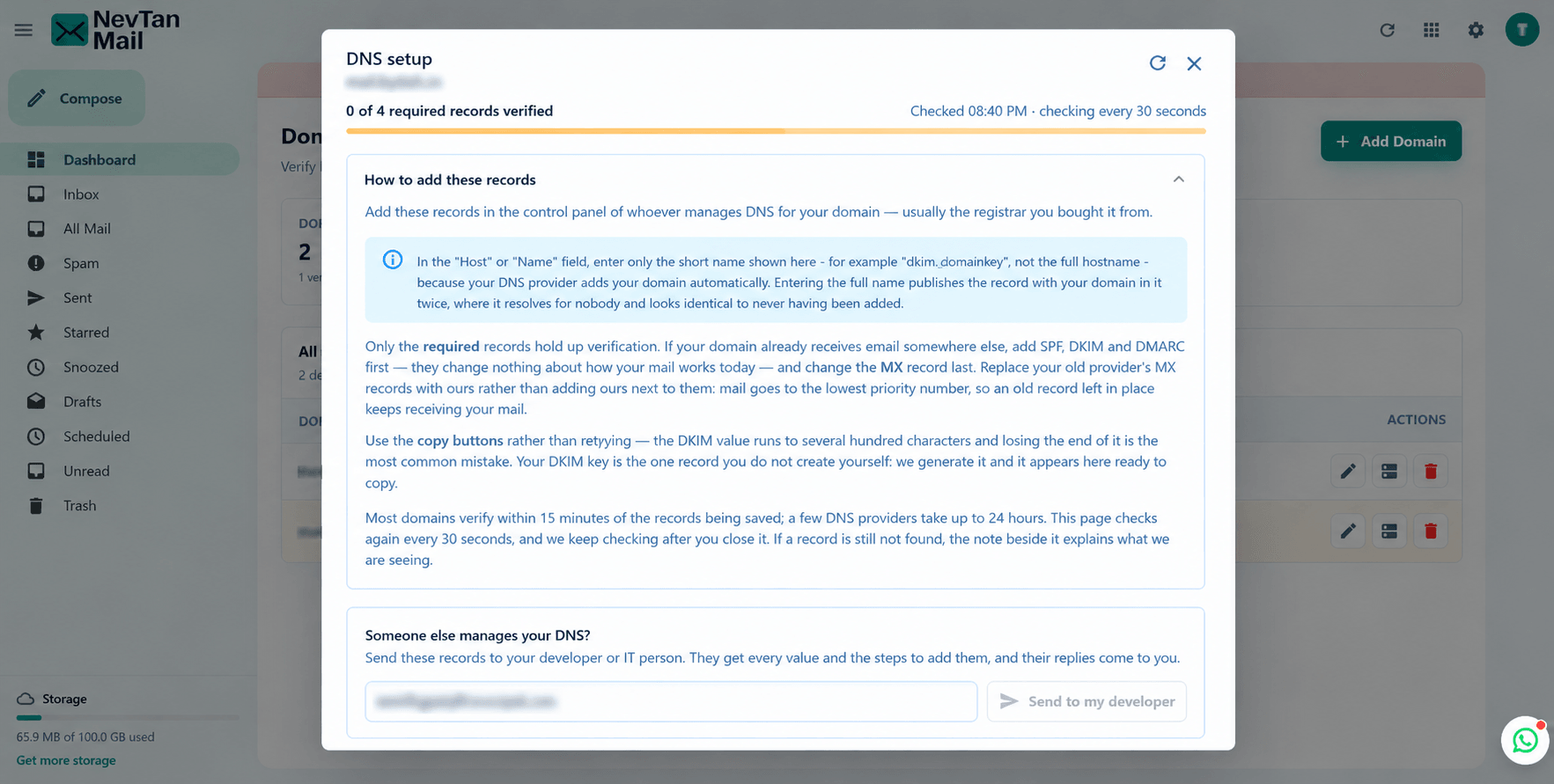
Every value you need is generated for your domain and listed on one screen inside NevTan Mail. You never have to work them out yourself, and you should never take them from anywhere else.
- Sign in as an admin: Record values are only visible to admins of the domain. If you can't see the Admin area, ask whoever set the domain up.
- Open Admin → Domain: The domain table lists every domain on your account, with its mailbox usage, storage, and status.
- Choose DNS on your domain's row: This opens the DNS records screen for that specific domain. Each domain has its own values — if you run more than one, don't mix them up.
- Read each record card: Each record shows its Type (MX, TXT, or CNAME), the Host / Name to create, the Value to paste, and a badge saying Verified, Not found yet, Fix needed, or — for a record that is not one of the four required — Needed for mail apps or Recommended, depending on your plan.
- Copy each value exactly: Use the Copy button next to the value and paste it. Don't retype it — DKIM values in particular are long, and a single altered character makes the record invalid.
- Keep the screen open while you work: Add the records at your DNS provider in another tab. The screen re-checks every 30 seconds, so you can watch each row turn from Not found yet to Verified.
- Or send them to whoever manages your DNS: If a developer or IT person looks after your domain, enter their address under Send to my developer. They get every value and the steps for your DNS provider, and their replies come to you.
If a value looks cut off
Long values — DKIM especially — may be visually truncated in the table. Select the whole field and copy it rather than transcribing what you can see, and paste it into a plain-text editor first if you want to confirm you have all of it.
Don't reuse values between domains or providers
Record values are tied to the specific domain they were generated for. Copying a DKIM record from another domain, an old provider, or an example in an article will fail verification — and mail will keep being rejected until it's corrected.
MX — receiving mail
An MX (Mail Exchange) record tells the internet which servers accept mail for your domain. Without it, mail sent to your addresses never reaches NevTan Mail.
- MX records carry a priority number — lower numbers are tried first. Enter the priority exactly as shown.
- Remove or disable MX records pointing at a previous mail provider. Leaving them in place can send your mail to the old provider.
- MX affects incoming mail only. It has no effect on whether your outgoing mail is accepted.
SPF — who may send
SPF (Sender Policy Framework) is a TXT record listing the servers allowed to send mail using your domain. When a receiver gets a message claiming to be from you, it reads your SPF record and checks whether the sending server is on the list. If not, the message fails SPF.
An SPF record is a single line that looks broadly like this:
v=spf1 <authorized senders> ~all
v=spf1— marks it as an SPF record.- The middle lists who may send — this is the part NevTan Mail fills in for you.
~allor-all— how to treat everyone else (soft fail or hard fail).
Only one SPF record per domain
A domain must have exactly one SPF record. Publishing two causes a permanent error and SPF fails for every message — a common cause of sudden delivery problems. If you already send mail through another service, do not add a second record: merge the senders into your single existing SPF record.
DKIM — signing your mail
DKIM (DomainKeys Identified Mail) adds a cryptographic signature to every message you send. The matching public key is published in your DNS, letting receivers confirm the message genuinely came from your domain and wasn't altered in transit.
DKIM is published on a selector — a subdomain-style prefix that lets a domain hold several keys at once. The record name therefore looks like a longer hostname rather than a bare domain.
- The value is unique to your domain and is the longest of the records — copy it in full.
- Some DNS providers automatically append your domain to the record name. If so, enter only the prefix, not the whole hostname, or you'll end up with it duplicated.
- Don't add line breaks or spaces when pasting. A broken key fails silently — mail sends, but signatures don't validate.
If your provider rejects the value as too long
DNS allows a single piece of TXT text to be 255 characters at most, and a DKIM key is longer than that. Most providers split it for you without saying so. A few do not, and refuse it instead — Route 53 with CharacterStringTooLong, DigitalPlat with Enter a valid TXT record value. The limit is DNS's, not your key's.
If you hit that, the DNS screen gives you the form those providers want:
- Open Admin → Domain → DNS and find the DKIM record.
- Take the split version of the value. It is the same key, broken into quoted pieces of 255 characters or fewer, which DNS joins back together when it is read.
- Paste the whole thing, quotes included, into the one TXT record. It is still a single record — never split a DKIM key across two.
DMARC — the policy
DMARC ties SPF and DKIM together. It tells receivers what to do when a message claiming to be from your domain fails those checks, and where to send reports about it.
| Policy | Means |
|---|---|
p=none | Take no action, just report. A safe starting point while you confirm everything is signing correctly. |
p=quarantine | Treat failing mail as suspicious — typically filed as spam. |
p=reject | Refuse failing mail outright. The strongest protection against someone spoofing your domain. |
A common approach is to start at p=none, confirm from the reports that your legitimate mail passes, then tighten to quarantine and eventually reject.
Publishing the records
- Open your DNS records: Go to Admin → Domain, find your domain, and choose DNS.
- Sign in to your DNS provider: This is wherever your domain is managed — for example Cloudflare, GoDaddy, Namecheap, or Route 53. It is often not the same company as your website host.
- Add each record: Create a record for each row, matching the Type, Host / Name, and Value exactly. Copy and paste rather than retyping — a single wrong character invalidates the record.
- Save and wait: Save at your provider. DNS changes need time to spread across the internet before NevTan Mail can see them.
- Check the state: Return to the DNS screen and confirm each record shows Verified.
Watch out for the trailing dot and the @ symbol
Providers differ. Some want @ to mean the domain itself; some want the field left blank. Some add a trailing dot to hostnames automatically. If a record won't verify, this is one of the first things to check — Adding records at your DNS provider has the exact convention for GoDaddy, Namecheap, Cloudflare, Route 53 and the rest, with screens and field names.
Verifying them
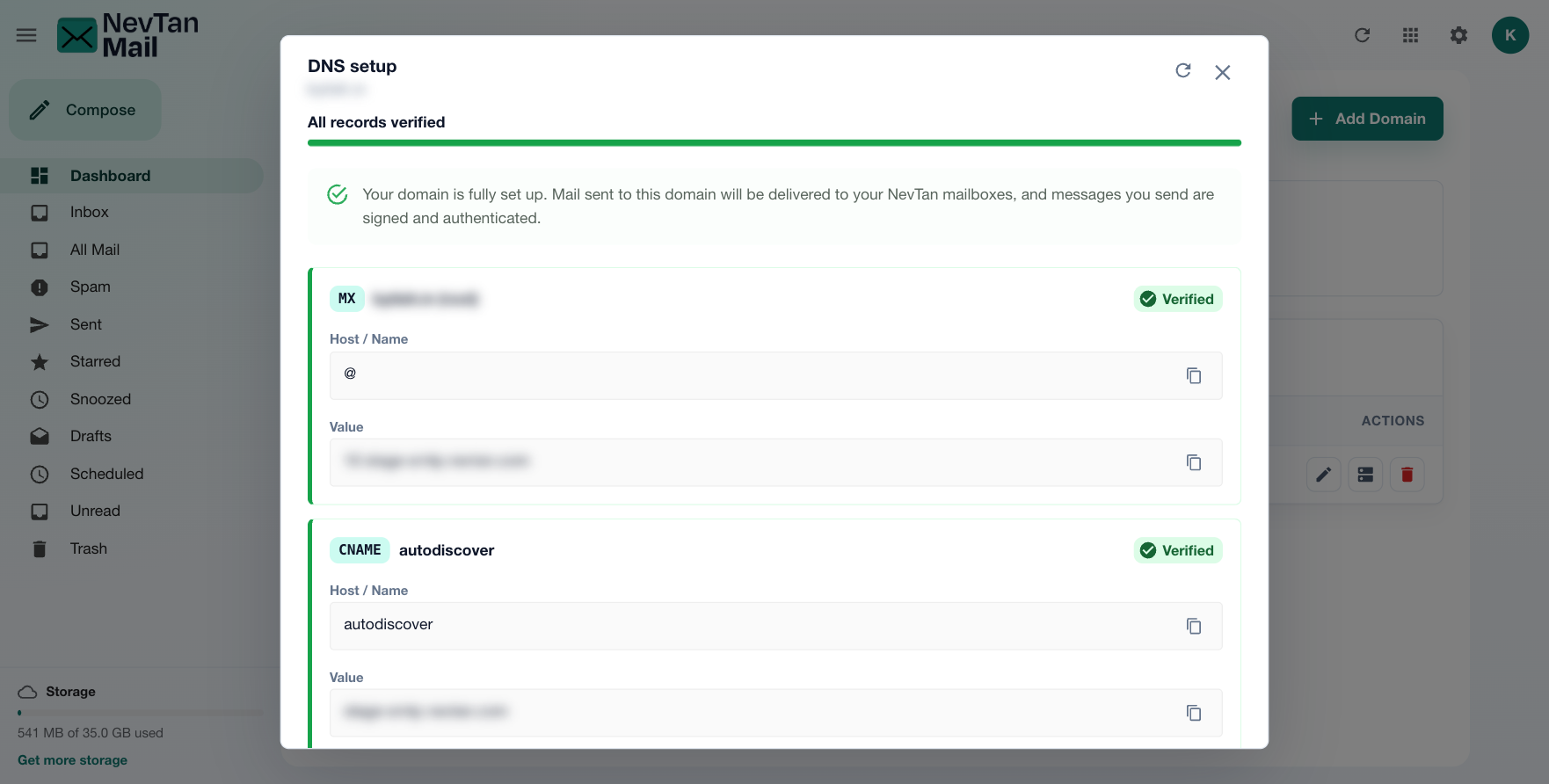
The DNS screen shows every record with a status badge and a progress bar across the top, so you can see at a glance what NevTan Mail can and can't find:
| Field | Meaning |
|---|---|
| Type | The record type — MX, TXT, or CNAME. |
| Host / Name | The record name to create at your DNS provider. |
| Value | The exact value to paste in. |
| Verified / Not found yet | Whether NevTan Mail can currently see the record published correctly. |
The badge on each record tells you where you stand:
- Verified — the record is published and matches. Nothing more to do.
- Not found yet — NevTan Mail can't see the record yet. Either it hasn't propagated, or the value doesn't match; the card shows what is currently published, or a hint, to help you spot the difference.
- Needed for mail apps — a mail-app record that isn't published yet, on a plan that includes mail-app access. Outlook, Thunderbird and phone apps can't set themselves up until it is, though it never holds up verification.
- Recommended — the same records on a plan without mail-app access. Worth adding, and likewise never holds up verification.
- Fix needed — the record is there, but something else on your domain stops it working: another mail provider's MX record at the same or a lower priority number, or a second SPF record. The note on the card says which.
Alongside the records, the domain itself shows a status in the domain table: Finish setup until the four required records — MX, SPF, DKIM and DMARC — are in place, then Verified.
Allow time to propagate
Most domains verify within 15 minutes of the records being saved; a few DNS providers take up to 24 hours. A row showing as pending shortly after you save it usually just needs more time — re-check before assuming the value is wrong.
Troubleshooting delivery
Mail sends, but Gmail or Outlook rejects it
This is the classic symptom of missing or invalid authentication: outgoing mail is accepted by NevTan Mail, then bounced by the recipient's provider with a message about the domain not being authenticated. Work through this in order:
- Open Admin → Domain → DNS and check whether SPF and DKIM both report as correct. If either is pending, that is almost certainly the cause.
- Confirm you have only one SPF record on the domain.
- Check the DKIM value was pasted in full, with no line breaks, spaces, or truncation.
- Confirm the record names are right — particularly whether your provider appends the domain for you.
- Wait for propagation and check again before making further changes.
Read the bounce message itself where you can. Providers usually name the failing check directly, which tells you which record to look at.
Mail arrives, but lands in spam
- Confirm SPF and DKIM both report correct — passing authentication is the single biggest factor.
- Add DMARC if you haven't. A domain with no DMARC record is treated with more suspicion.
- New domains have no sending reputation. Build up volume gradually rather than sending a large batch on day one.
Mail isn't arriving at all
- Check the MX records report as correct — incoming mail depends on them.
- Make sure no MX records for a previous provider are still published.
- Confirm the mailbox exists and is Active — see the mailbox notes in Create & manage mailboxes.
Still stuck after the records report as correct? Email info@nevtan.com with your domain name and the full text of a bounce message, and we can look at it with you. DNS problems are often quicker to sort over chat: signed-in admins have a WhatsApp button in the bottom-right corner of every screen.