
Migrate
Import and export mail
Send feedbackAlready have mail somewhere else? NevTan Mail can copy it across so your history is all in one place. Imports run in the background while you keep using your inbox, and you can download a copy of your own mailbox at any time.
Ways to import
Find everything under Settings → Import & export once you're signed in. There are two ways to bring mail in:
- Upload a file: upload a Google Takeout .zip, or .mbox and .eml files from any other provider. Best for Gmail and Google Workspace, keeps your labels, and needs no app password.
- Connect with IMAP: NevTan Mail signs in to your old mailbox with an app password and copies the mail. Use this for Yahoo and Zoho.
Import a Gmail export
- Open Google Takeout: Go to takeout.google.com and sign in to the Gmail account you are moving from.
- Pick only Mail: Click Deselect all, tick Mail, then click Next step. Leave All Mail data included selected to bring every label.
- Create the export: Choose Export once, file type .zip, and click Create export. Google emails you when it's ready, which can take from a few minutes to a day.
- Download it: Download the .zip from Google's email. If Google split the export into several parts, download every part.
- Upload it to NevTan Mail: Open Settings → Import & export → Upload a file, pick Gmail, choose the .zip, and click Upload and import. Keep the tab open until the upload bar finishes; after that the import carries on without you.
Several parts or a second try
Upload each part on its own; they import one after another. Messages that are already in your mailbox are recognised and skipped, so uploading the same export twice never creates duplicates.
You can also upload a single .mbox file, a single .eml file, or a .zip of .eml files. In a .zip of .eml files, the folder each file sits in (for example Inbox/ or Sent/) decides where it lands.
Where Gmail mail lands
| In Gmail | In NevTan Mail |
|---|---|
| Inbox | Inbox |
| Sent | Sent |
| Drafts | Drafts |
| Not in the inbox (archived) | Archive |
| Your own labels, including nested ones | Labels with the same names (needs a plan with labels) |
| Starred and unread | Starred and unread |
| Spam and Trash | Spam and Trash, only if you tick Include Spam or Include Trash |
| Important and Categories | Not carried over |
| Google Chat messages | Not imported |
Each email is stored once, even if it had several labels in Gmail, and conversations stay grouped the way they were. Attachments and the original sender, recipients and dates are kept.
Track a file import
The File imports list shows each upload with a progress bar and how many emails were imported, were already there, were skipped, or failed. You can Pause and Resume an import, Cancel it (anything already imported stays), and open Details to see which messages failed and why. If some failed because of a temporary problem, Retry failed tries just those again. If your browser closed during the upload, choose Resume upload and pick the same file to carry on.
How IMAP import works
You give NevTan Mail read access to your other mailbox using an app password — a special password you generate at your current provider specifically for other apps. Your normal login password isn't used, and you can revoke the app password at your provider at any time.
IMAP providers
| Provider | IMAP host |
|---|---|
imap.gmail.com | |
| Yahoo | imap.mail.yahoo.com |
| Zoho | imappro.zoho.com |
Outlook / Microsoft 365
Microsoft accounts aren't supported for import right now. Microsoft has retired app-password (basic) sign-in for IMAP, so importing from Outlook or Microsoft 365 will return once sign-in-based import is available.
Get an app password
Before importing, create an app password in your current provider's security settings (they may call it an "app password" or "app-specific password"). This usually requires two-step verification to be turned on. Keep the generated password handy for the next step.
Start an import
- Choose your provider: Pick Google, Yahoo, or Zoho from the provider list.
- Enter the source mailbox: Type the email address you're importing from and the app password you generated.
- Choose folders: Your inbox is always imported. Optionally include the Sent, Drafts, Spam, and Trash folders.
- Set a start date (optional): Leave it blank to import everything, or enter a date to import only mail from that point onward.
- Start: Open the Connect with IMAP tab and choose Import with IMAP. The import begins and can take a few minutes for a large mailbox.
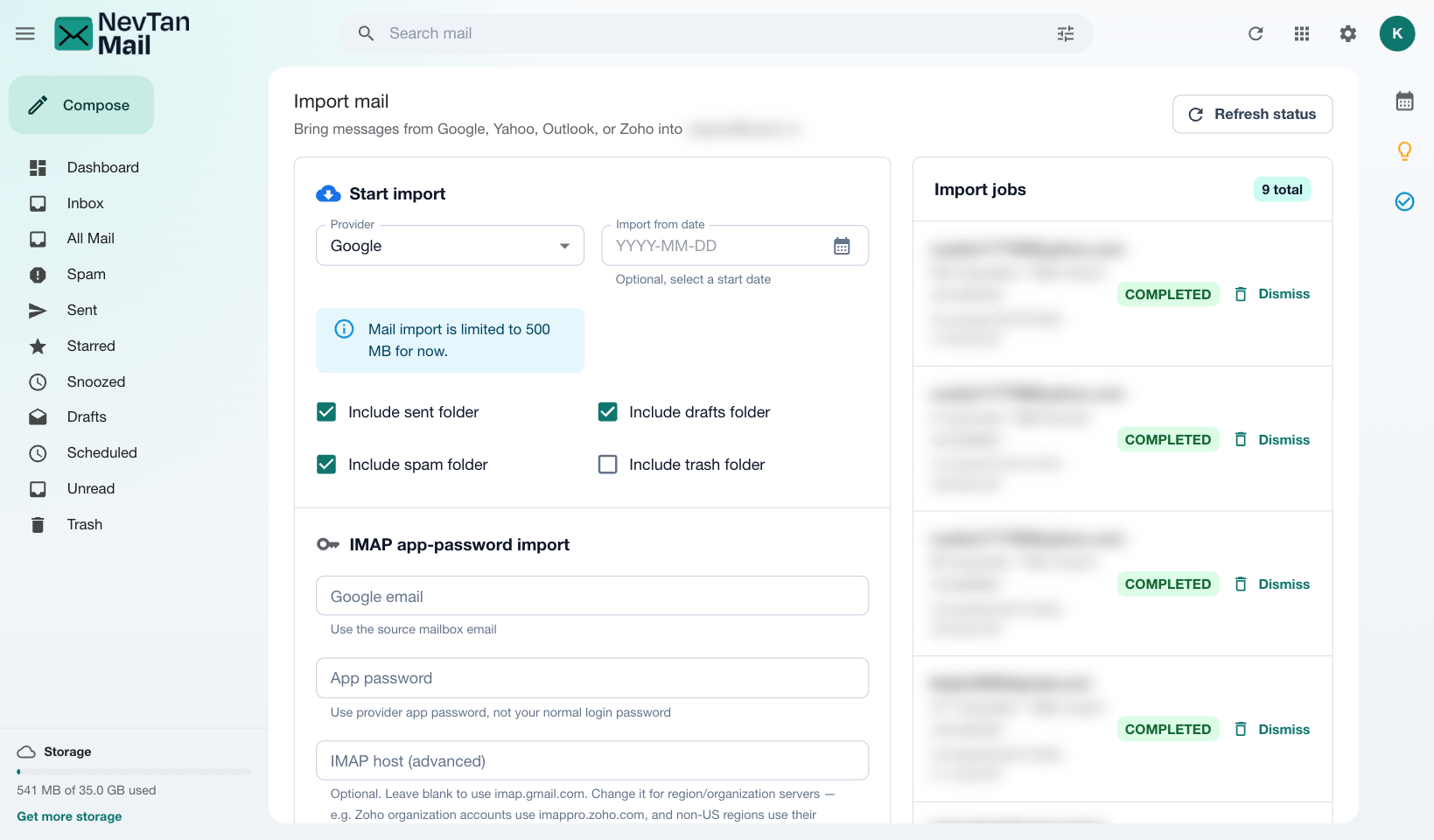
Custom IMAP host
Most people can leave the IMAP host blank. If your provider uses a regional or organization server (for example a non-US Zoho region), enter its host in the advanced field.
Track import status
The Import jobs panel shows every import and its state — queued, running, completed, failed, or cancelled — along with how many messages have come across. You can Cancel a running import, and Dismiss a finished one to clear it from the list. Only one import runs at a time.
Limits
- IMAP imports are currently capped at 500 MB per job, and one runs at a time.
- Uploaded files can be up to 500 MB each. A single email larger than 50 MB is skipped and listed under Details.
- Uploaded files are deleted 7 days after their import finishes.
Need help with a large migration? Email info@nevtan.com and include the source address and provider.
Export your mail
Open Settings → Import & export → Export and click Create export. NevTan Mail builds a .zip with one .mbox file holding every email in your mailbox: Inbox, Sent, Drafts, Archive, Spam and Trash, with attachments. It uses the same format as Google Takeout, and each email keeps its labels in the X-Gmail-Labels header.
- Open the .mbox in Thunderbird or Apple Mail, or import it into another NevTan mailbox with Upload a file.
- Large mailboxes can take a while. You can leave the page; come back and click Download when it says Ready.
- The download stays available for 7 days. Export is free on every plan.