
Composing email
Compose windows work much like Gmail's — they dock at the bottom-right of the screen, and you can open several at once. Each window can be minimized, restored, or expanded to full screen while you write.
Start a message
Choose Compose to open a new message. A compose window appears at the bottom-right; use the controls in its header to minimize it, expand it to full screen, or close it.
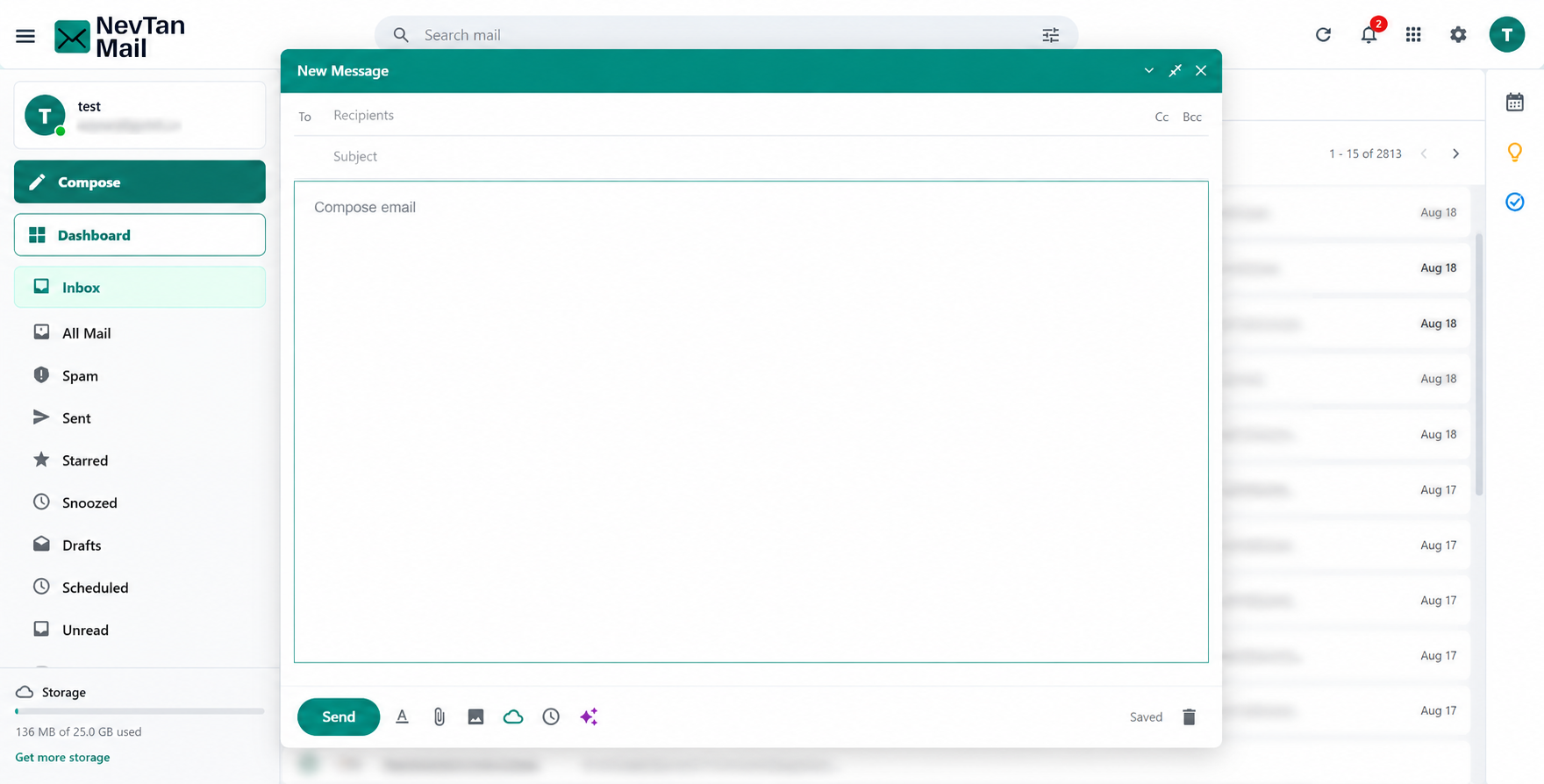
Compose window controls
The buttons in the compose window's header manage the window itself:
- Minimize / Restore — collapse the window to its title bar so you can see your mail, then bring it back.
- Full screen / Exit full screen — expand the window for longer messages, then shrink it again.
- Save and close — close the window, keeping what you've written as a draft.
Recipients, Cc & Bcc
Enter one or more addresses in the To field. As you type, NevTan Mail suggests people you've emailed before so you can pick an address quickly. The Cc and Bcc fields are hidden until you need them — choose Cc or Bcc to reveal them.
The compose toolbar
The row of controls along the bottom of the compose window holds every message action:
| Control | What it does |
|---|---|
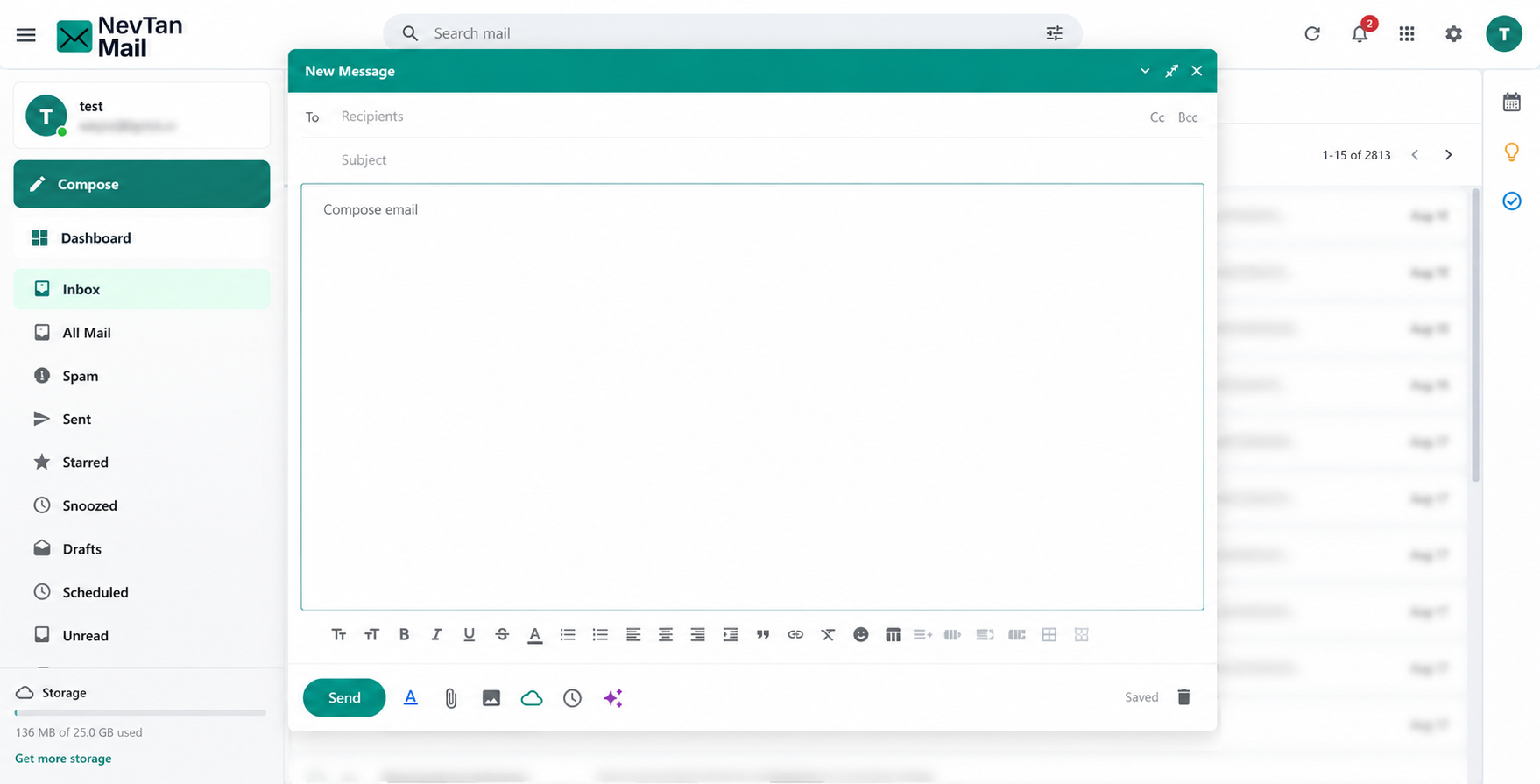
| Formatting options | Shows or hides the formatting toolbar. It's hidden until you turn it on. |
| Attach files | Opens the file picker. You can select several files at once. |
| Attach from NevTan Drive | Inserts a share link to a file in your Drive. |
| Insert photo | Places an image inline in the message body. |
| AI writing assist | Drafts or restyles the message text for you. |
| Schedule send | Picks a future date and time to send the message. |
| Discard draft | Throws the message away instead of sending or saving it. |
| Send | Sends the message right away. |
Don't see the formatting buttons?
The formatting toolbar starts hidden. Choose Formatting options (the Aa button) to reveal it; the button highlights while the toolbar is showing.
Formatting & tables
With the formatting toolbar showing, you can style your message:
| Group | Controls |
|---|---|
| Text | Font and Font size. |
| Emphasis | Bold, Italic, Underline, and Strikethrough. |
| Colour | Text colour. |
| Lists | Bulleted list and Numbered list. |
| Alignment | Align left, Align centre, and Align right. |
| Indent | Increase indent and Decrease indent. |
| Blocks | Quote, for setting text off as a quotation. |
| Insert | Link, Insert photo, Insert emoji, and Insert table. |
| Tidy up | Clear formatting, which strips styling from the selected text. |
Insert table drops in a 3 × 3 table you can type into. The table buttons after it stay greyed out until your cursor is inside a table:
- Add row and Add column — insert next to the cell you're in.
- Delete row and Delete column — remove the current one. Deleting the last row or column removes the whole table.
- Show borders and Hide borders — toggle the table's gridlines for that table.
Pasting a table
Paste a table from a spreadsheet or another email and it keeps its own formatting rather than taking on the editor's borders.
Attachments & images
Attach files with the Attach files (paperclip) button — you can pick several at once. Each attachment appears as a chip below the message; remove one with the × on its chip. To place a picture inside the message rather than attach it, use Insert photo, or drop an image straight into the body; hover an inline image and choose the remove control to take it out again.
Attachments are subject to size limits:
- Up to 20 MB per file.
- Up to 20 MB total across all attachments in one message.
Sending larger files
If a file is over the limit, share it with a link (for example from a cloud drive) instead of attaching it. Oversized attachments are caught before the message is sent.
Schedule send
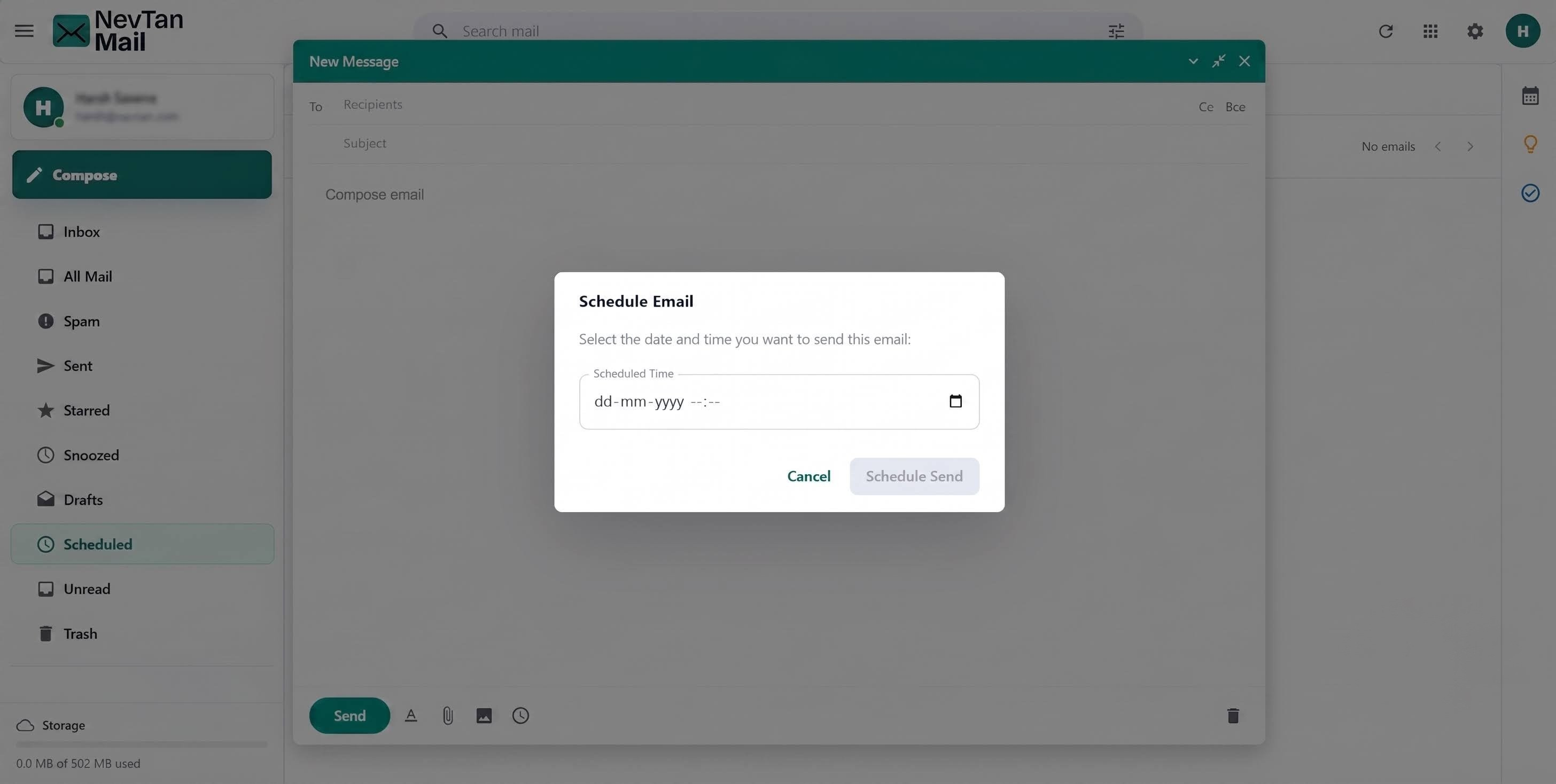
Open the schedule option
In the compose window, choose the Schedule send (clock) control.
Pick a date and time
Choose when the message should go out. The time must be in the future.
Confirm
The message moves to your Scheduled folder, where you can review or cancel it before it sends. See Drafts & scheduled email.
AI writing assist
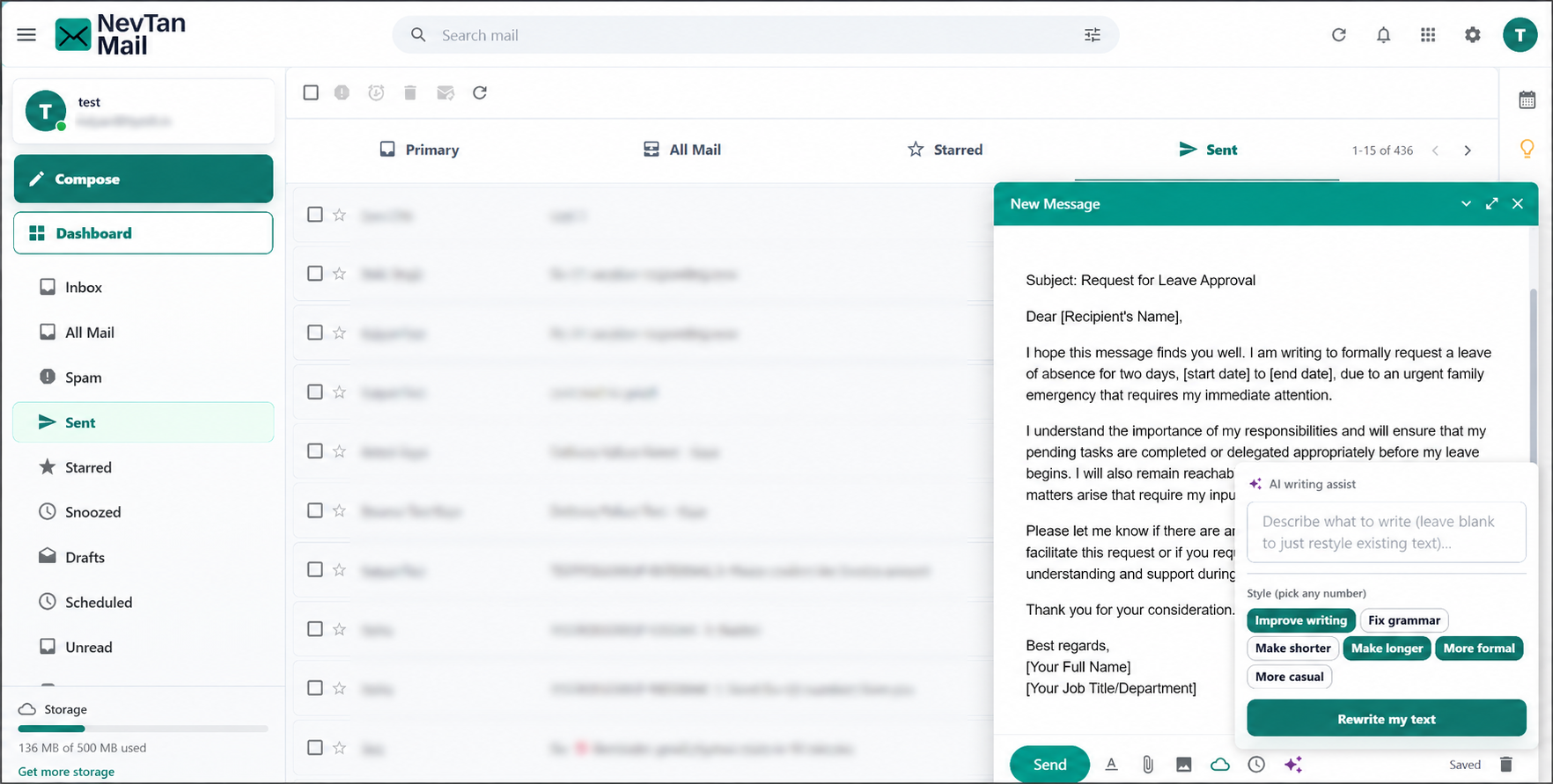
Stuck on the wording? Choose AI writing assist in the compose toolbar to have NevTan Mail draft or rework the message for you. It works two ways:
- Write for me — describe what you want to say and it drafts the message from your prompt.
- Rewrite my text — leave the prompt blank and it reworks what you've already written (or just the part you've selected).
You can also pick any number of style options to shape the result: Improve writing, Fix grammar, Make shorter, Make longer, More formal, and More casual. These apply whether you're writing from a prompt or restyling existing text.
Always read it back
AI-generated text is a starting point, not a final draft. Check the wording and any facts, names, or figures before you send.
Attach from NevTan Drive
Alongside ordinary attachments you can attach files straight from NevTan Drive, and files too large to send normally are shared from Drive as a link automatically. See NevTan Drive & large attachments.
Undo send & recall
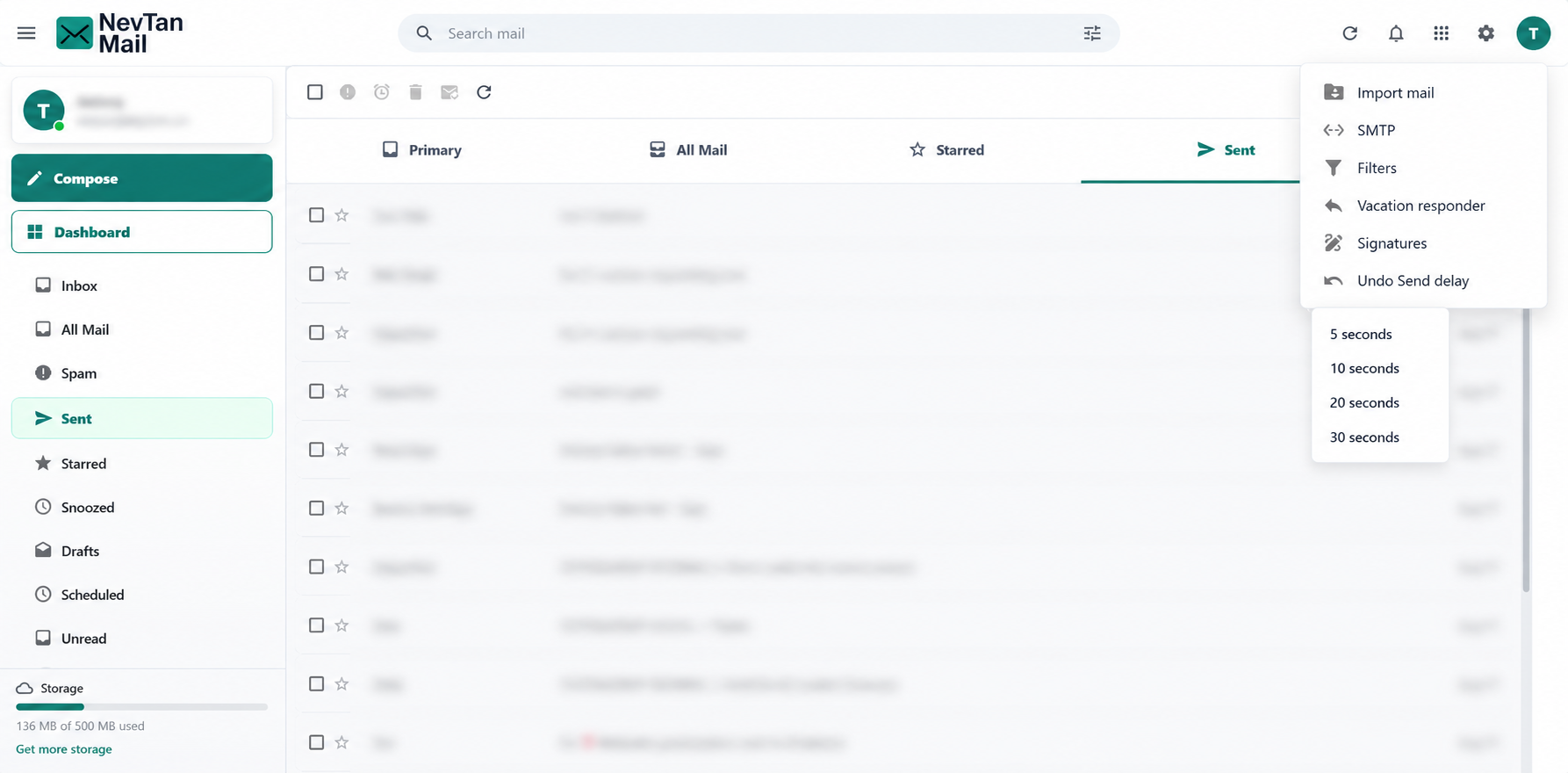
Sent something too soon? NevTan Mail can pull a message back — what other mail apps call recall. Right after you send, a short-lived Undo prompt appears. Choose it within that window and the message is recalled and reopened for editing, rather than delivered. It works for new messages and for replies and forwards.
Recall only works inside the undo window
The message is held back for the delay you choose below and isn't sent until it passes. Once that window closes the message is on its way, and it can't be recalled — there's no way to retrieve a message a recipient has already received.
The window is your choice. Open the Settings (gear) menu, choose Undo Send delay, and pick 5, 10, 20, or 30 seconds. Mail is held back for that long before it's actually dispatched.
Draft autosave
Your message is saved automatically as you write, a couple of seconds after you stop typing. The compose window shows the current status — Saving…, Saved, or a note if a save didn't go through. You can close a compose window and pick the draft back up later from Drafts.
Add a sign-off automatically
You don't have to retype your sign-off each time — save one under Signatures and NevTan Mail appends it to new messages, replies, and forwards for you.
Still need a hand?
Our support team usually replies within one business day.
Email us at support@nevtan.com