
Create & manage meetings
The Calendar lets you schedule meetings without leaving NevTan Mail. Add guests, set the time and time zone, optionally add a video link, and invitations go out by email.
The calendar
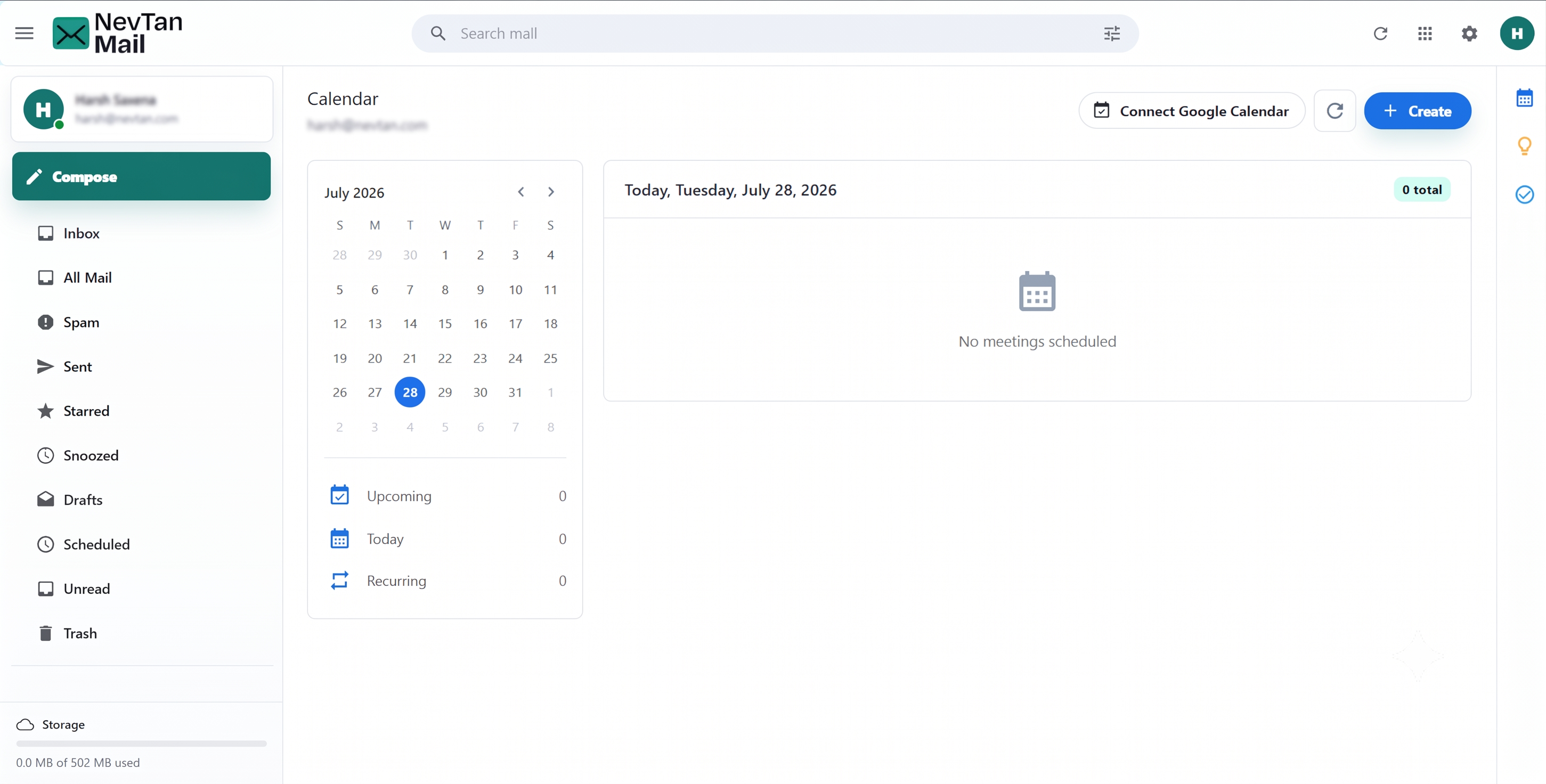
Open Calendar from the app. A day view sits alongside a mini-calendar for jumping between dates, with counts of your upcoming, today's, and recurring meetings.
Create a meeting
Start a new meeting
Choose New meeting.
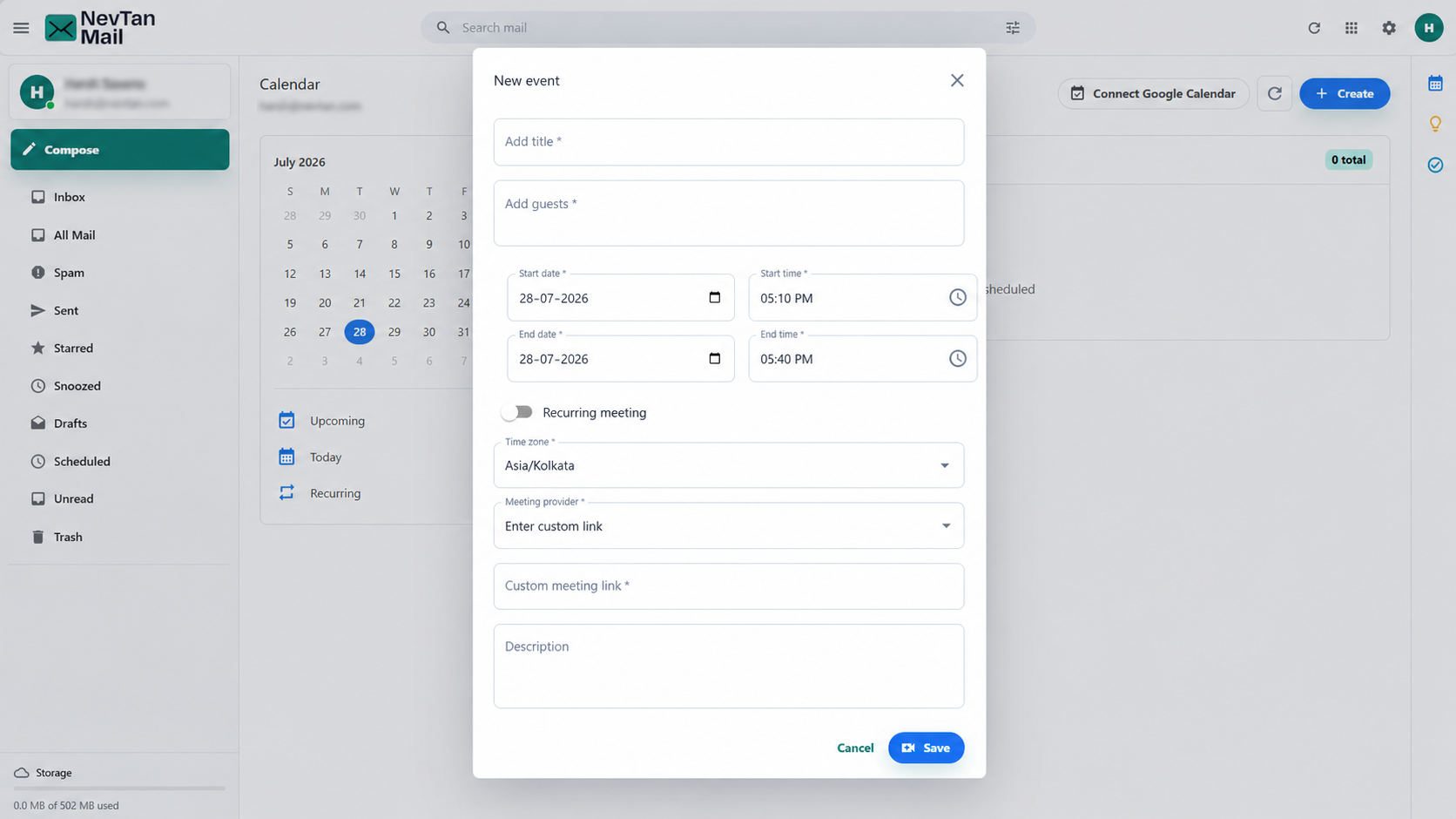
Add a title and guests
Give the meeting a title and add at least one guest. Guest addresses autocomplete from people you've emailed.
Set the time
Pick the start and end date and time. The time zone defaults to your own — the one your computer is set to — so you normally don't need to touch it. Change it if you're scheduling for somewhere else.
Add a video link (optional)
Generate a Google Meet link or paste your own. See Add a video link.
Add a description (optional) and save
Save the meeting to schedule it and notify your guests.
Time zones
Every meeting is stored with a time zone, so guests in other regions see the time correctly converted for them.
The picker defaults to your own time zone — the one your computer is set to — so in most cases you can leave it alone. Change it when you're scheduling for somewhere else: for example, booking a meeting in a colleague's local time while you're travelling.
Where the default comes from
NevTan Mail reads the time zone from your browser and operating system, not from a setting inside the app. If a meeting shows an unexpected zone, check your computer's date and time settings — updating them there changes what NevTan Mail suggests.
The time zone is shown alongside the meeting time when you view a meeting, and travels with the invitation your guests receive.
Recurring meetings
Set a meeting to repeat when you create it. You can choose:
- Daily, Weekly, Monthly, or every Weekday (Monday–Friday).
- Custom — pick specific days of the week and repeat every so many days, weeks, or months.
- An end: never, on a specific date, or after a set number of occurrences.
Edit or delete
Open a meeting to edit its details or delete it. For a recurring meeting, you'll be asked whether the change applies to this event only or to all events in the series.
Invitations
When you save a meeting, NevTan Mail emails an invitation to your guests. Editing a meeting sends an updated invitation so everyone stays in sync.
Still need a hand?
Our support team usually replies within one business day.
Email us at support@nevtan.com