
Files & Drive
NevTan Drive & large attachments
Send feedbackNevTan Drive is the file storage app in the NevTan suite. Inside NevTan Mail it does two jobs: you can attach files you already keep in Drive, and files too big to send as a normal attachment are shared from Drive as a link instead of being rejected.
What Drive is
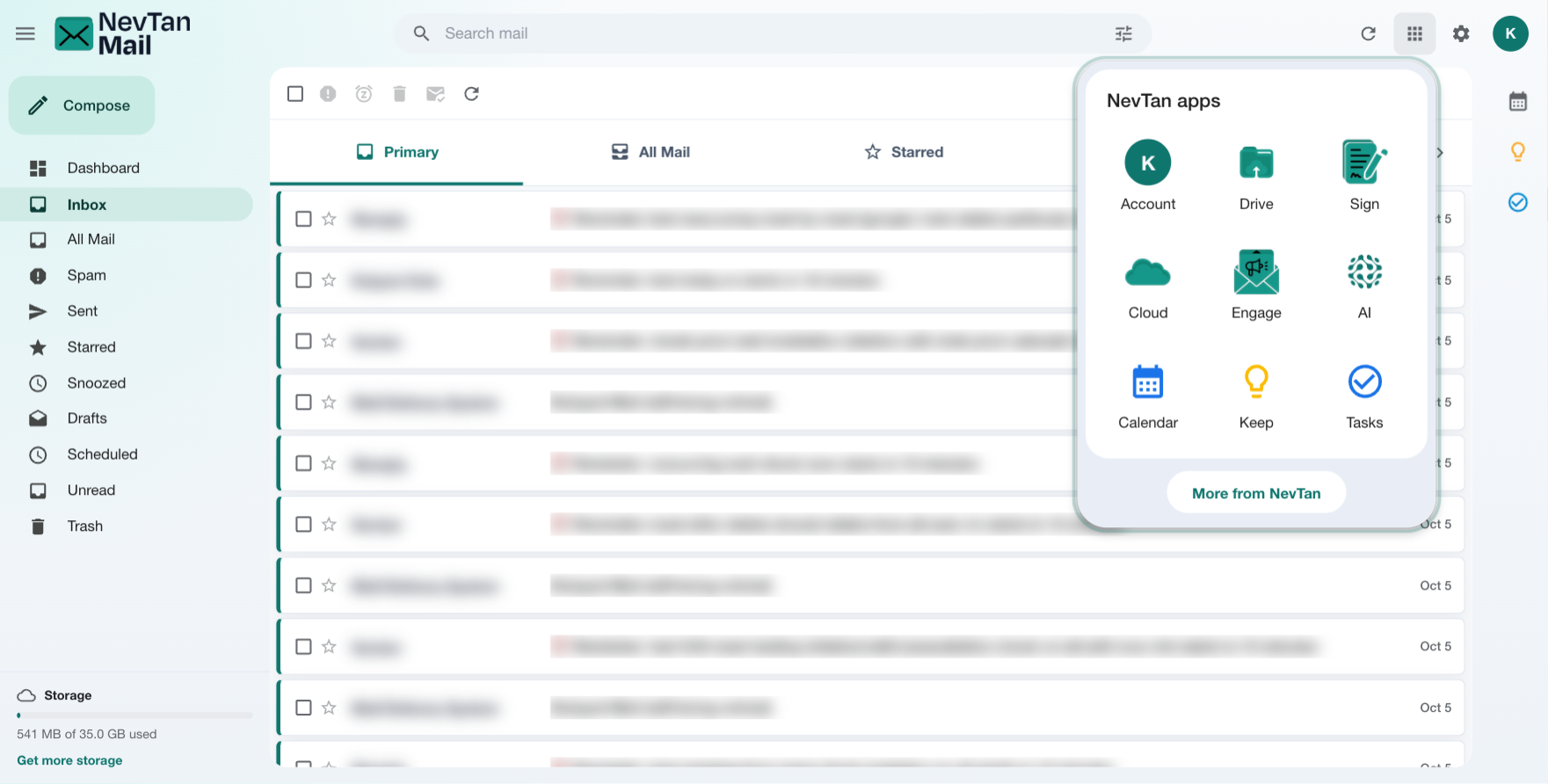
Drive is NevTan's file app. It uses your mailbox sign-in and the same storage as your mail — there's no separate Drive plan. Open it at drive.nevtan.com or from the NevTan Apps grid in the header; anything in your Drive is reachable from compose without uploading it again.
Signing in to Drive
You don't sign in to Drive separately. NevTan Mail uses your existing NevTan session to open a Drive session for you the first time you use the picker, and renews it quietly if it expires. If you're signed in to your mailbox, your Drive files are already reachable.
Attach from Drive
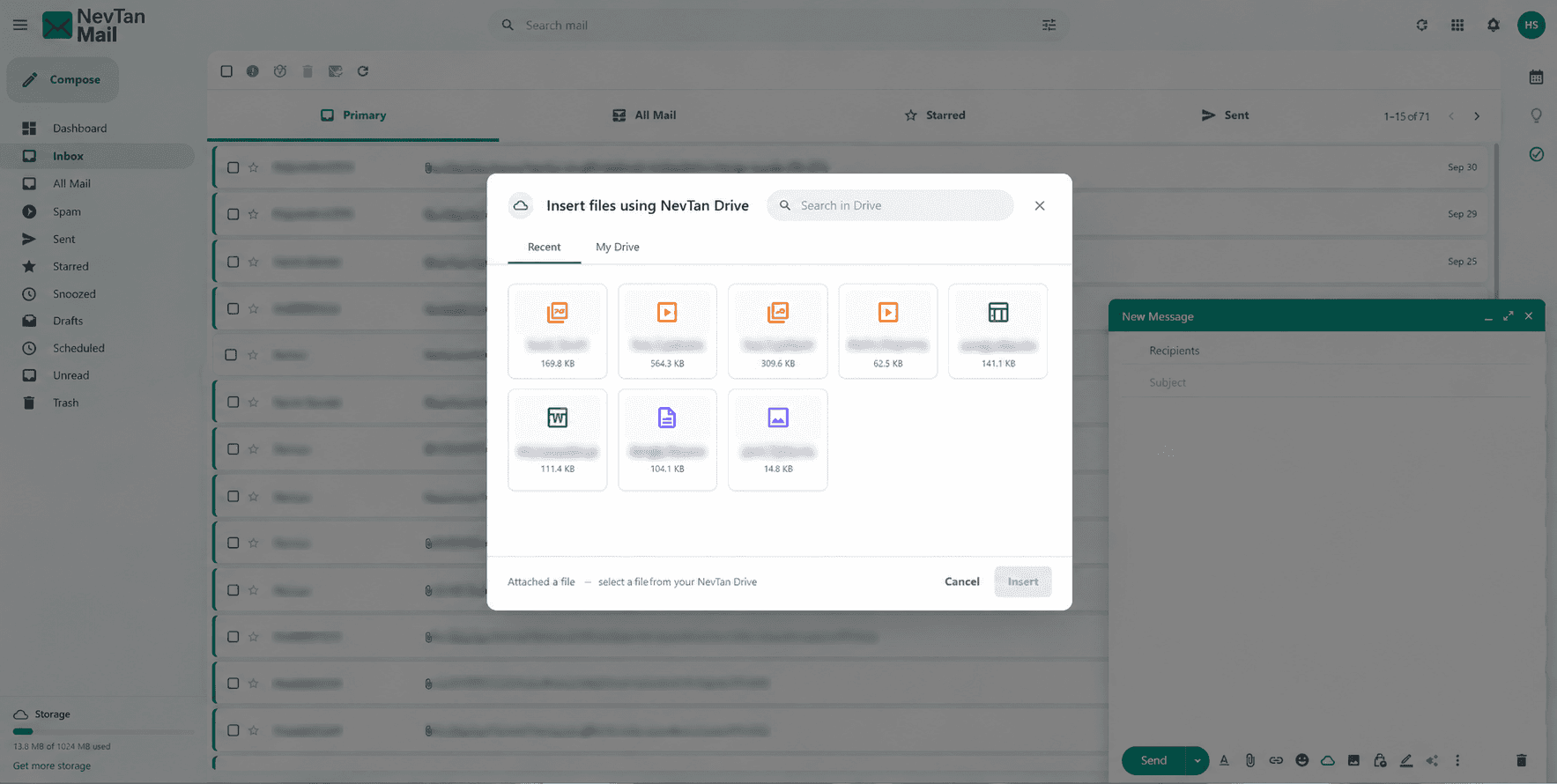
- Open the Drive picker: In a compose window, choose Attach from NevTan Drive.
- Find your file: Use the Recent or My Drive tabs, or search — see below.
- Insert it: Pick the file and NevTan Mail creates a share link for it and adds it to the message body. Your recipients open the file from Drive rather than downloading a copy from the email.
Share links are created for you
Picking a file mints a share link automatically, so you don't have to set up sharing in Drive first. Anyone who receives the message can open the file through that link.
Finding a file
The picker opens on Recent each time. You have three ways to get to a file:
| Where | Shows |
|---|---|
| Recent | The files you opened most recently — the fastest route to something you were just working on. |
| My Drive | Your Drive files, newest first. |
| Search in Drive | Type to search across your Drive by name. Search looks at everything, not just the tab you're on. |
Pasting a link instead
If the picker can't reach Drive — for example your session has lapsed or Drive is temporarily unavailable — it falls back to letting you paste a link. Enter a Drive share URL and a name for it, and NevTan Mail adds it to the message exactly as if you'd picked it. This is also handy for a file someone else shared with you.
Sending large files
You don't have to decide which route a file takes. Attach it as normal and NevTan Mail picks for you:
- Within the ordinary mail limit — it travels as a regular attachment on the message.
- Over that limit — it's stored in your Drive and the email carries a share link instead, so the message still sends, as long as you have storage left — offloaded files count toward your shared storage.
Size limits
| Route | Limit |
|---|---|
| Normal attachment | 20 MB per file, and 20 MB total across one message |
| Shared from Drive | Up to 100 MB per file |
Over 100 MB
A file larger than 100 MB can't be attached or offloaded to Drive. Upload it to Drive yourself and share the link, or split the file up.
Receiving Drive files
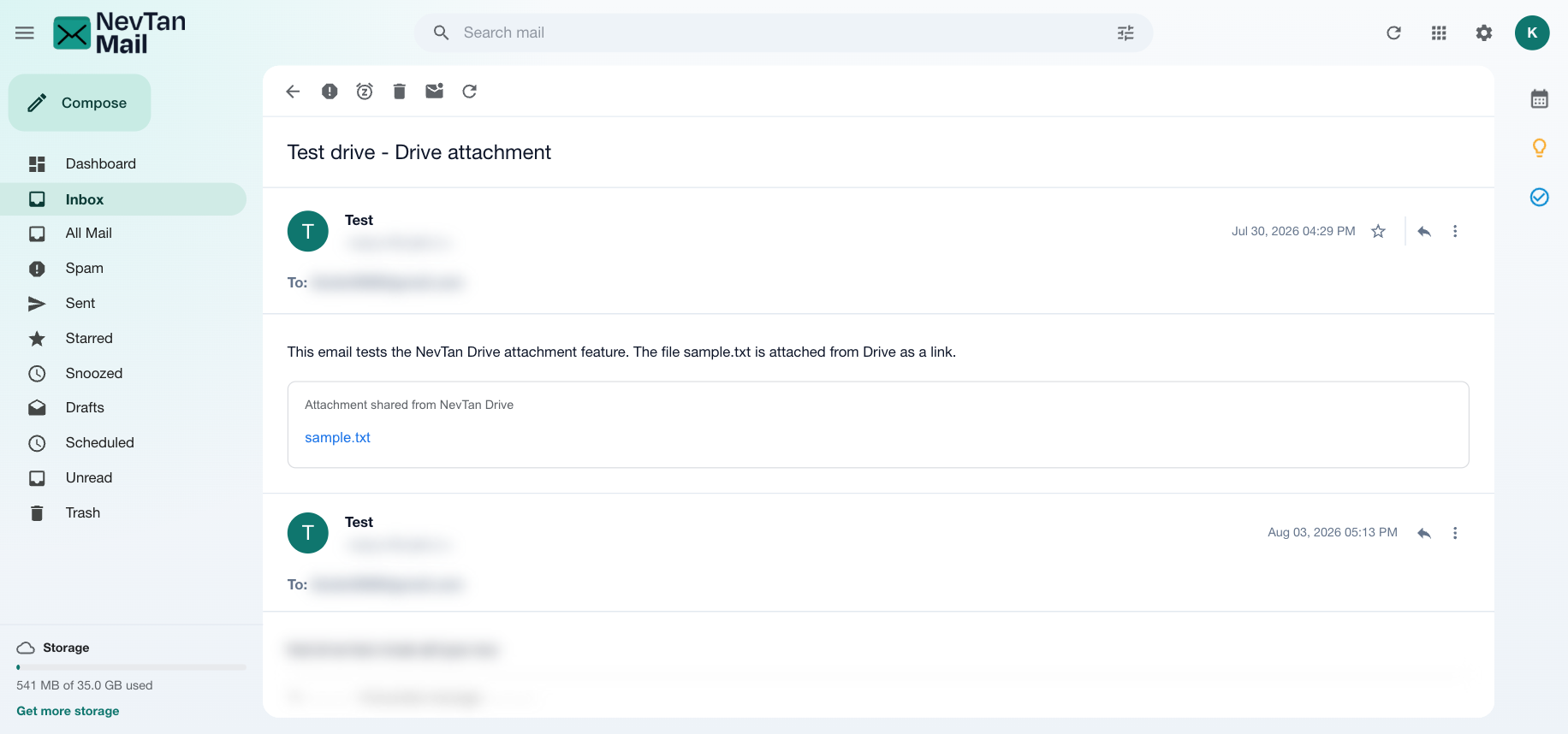
When a message carries files shared from Drive, they're grouped under an Attachments shared from NevTan Drive heading so it's clear they live in Drive rather than in the email. Selecting one opens it in Drive in a new tab.
Drive files vs. attachments
A file shared from Drive behaves differently from one attached to the message. The message carries a link, not the file itself, which means:
| Normal attachment | Shared from Drive | |
|---|---|---|
| Travels with the message | Yes | No — the message carries a link |
| Preview inside the mailbox | Yes, for supported types | No — it opens in Drive |
| Download button | Yes | No — open it in Drive and download from there |
| Size ceiling | 20 MB | 100 MB |
For how ordinary attachments preview and download, see Attachments & previews.
The link stays live
Because recipients open the file in your Drive, they see the file as it is now — not as it was when you sent it. Later edits are visible to them, and removing the file or its sharing will break the link in messages you've already sent.