
NevTan Mail Help
Mail settings
Signatures
Send feedbackA signature is a sign-off appended to the bottom of your outgoing mail. You can keep several — for example a full one for new mail and a short one for replies — and NevTan Mail adds the right one for you.
Open Signatures
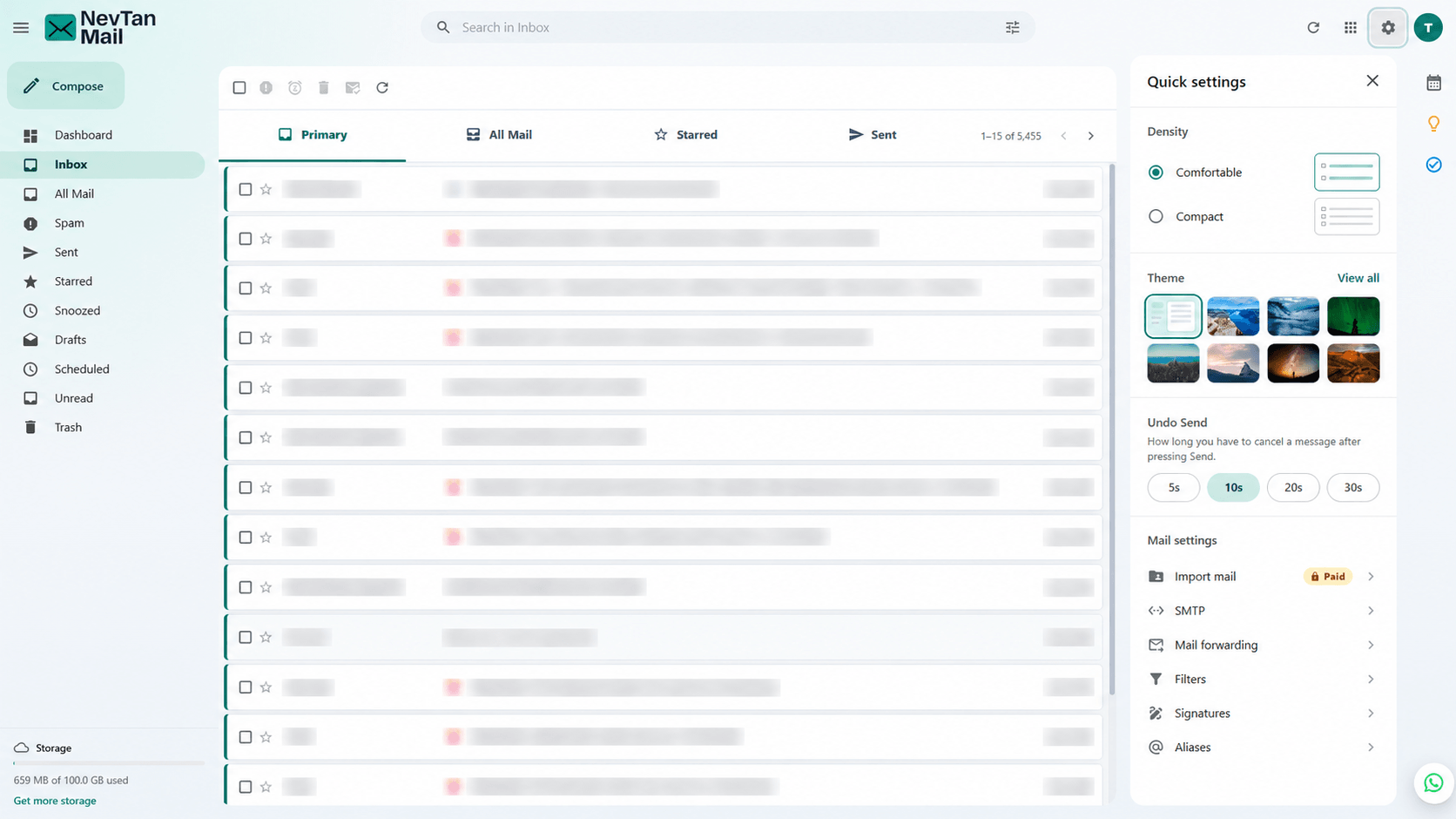
Select the Settings (gear) icon in the header to open Quick settings, then choose Signatures under Mail settings.
Create a signature
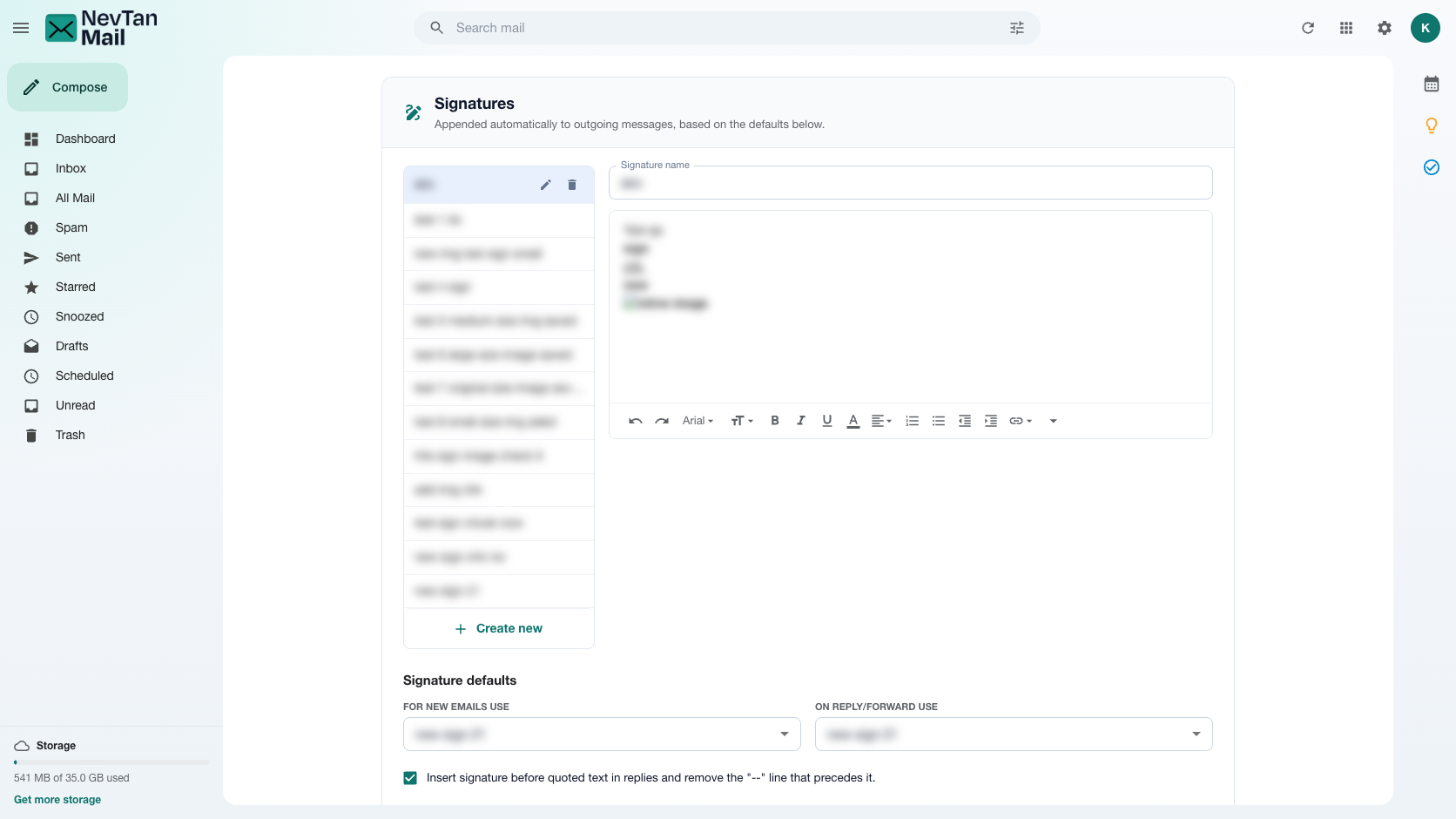
- Add a signature: Choose to add a new signature and give it a name — the name is only for you, so you can tell them apart.
- Write it: Compose the signature in the editor. It takes the same formatting as a message, so you can add styling, links, and images.
- Save: Save it, and it becomes available to pick as a default below.
Signature defaults
Two separate defaults control when a signature is used:
- For new emails — added when you start a brand-new message.
- For replies and forwards — added when you reply to or forward a message.
Either can be set to No signature if you'd rather not have one added automatically in that case.
Edit & delete
Signatures can be edited or deleted at any time from the same screen. Deleting a signature that was set as a default simply clears that default — no other signature is picked for you.