
Create & manage mailboxes
Once a domain is set up, create a mailbox for each teammate. They can sign in with the address and password you set.
Verify your email first
You must verify your own email address before you can create mailboxes. If you see a "please verify your mail" banner, open the activation email we sent and click the link.
Create a mailbox
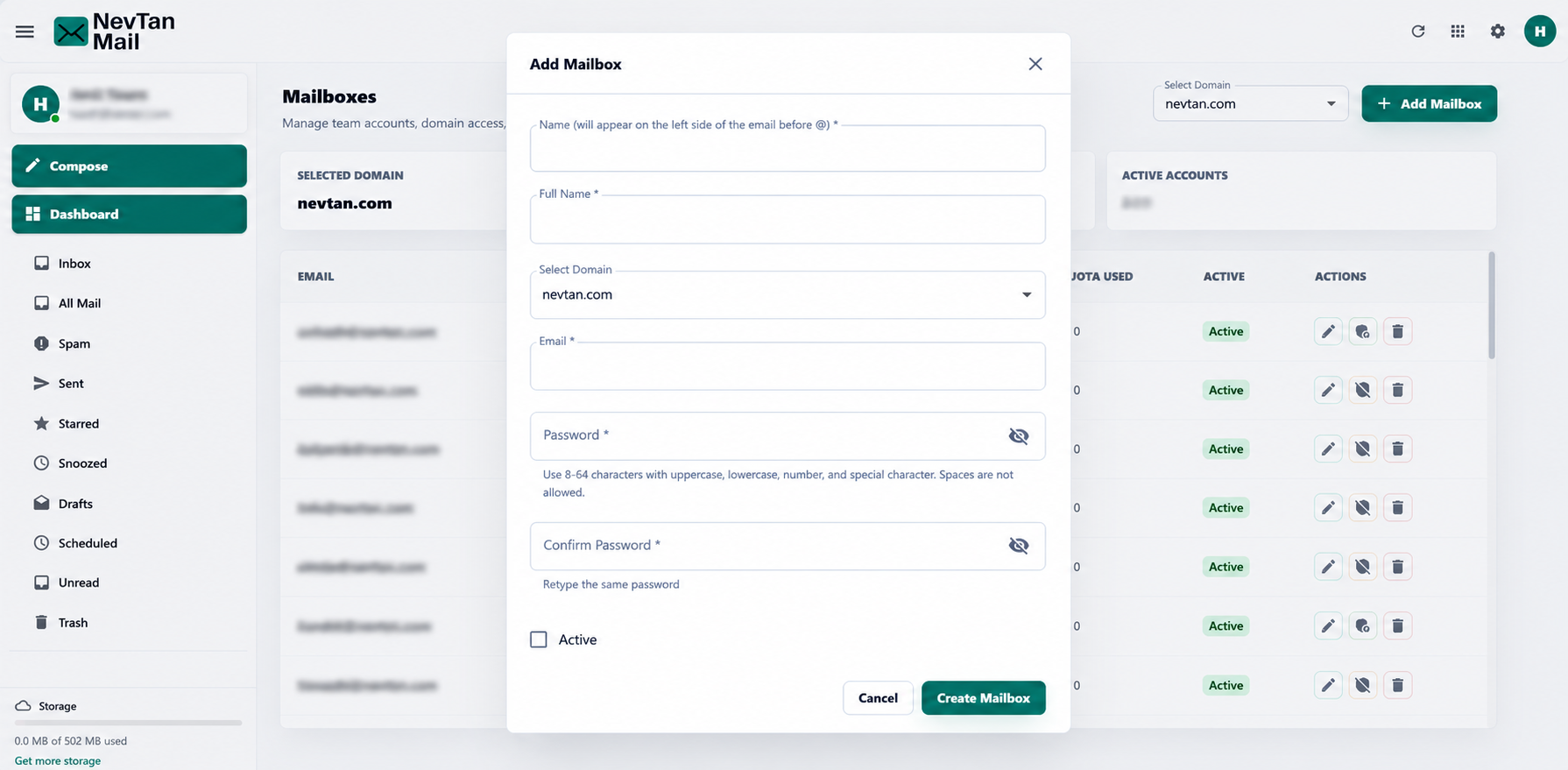
Open mailbox setup
Go to Admin → Mailbox and choose Add Mailbox.
Enter the details
Set the Name (the part before the @, using letters, numbers, and . _ -), a Full Name (letters and spaces), and select the Domain.
Set a password
Enter and confirm a password that meets the requirements below.
Create
Optionally tick Active, then create the mailbox. Share the address and password with your teammate.
Password requirements
NevTan Mail uses one password rule everywhere — sign-up, password reset, and the mailboxes you create here. A password must have:
- 8 to 64 characters
- At least one uppercase letter and one lowercase letter
- At least one number
- At least one special character
- No spaces
Edit a mailbox
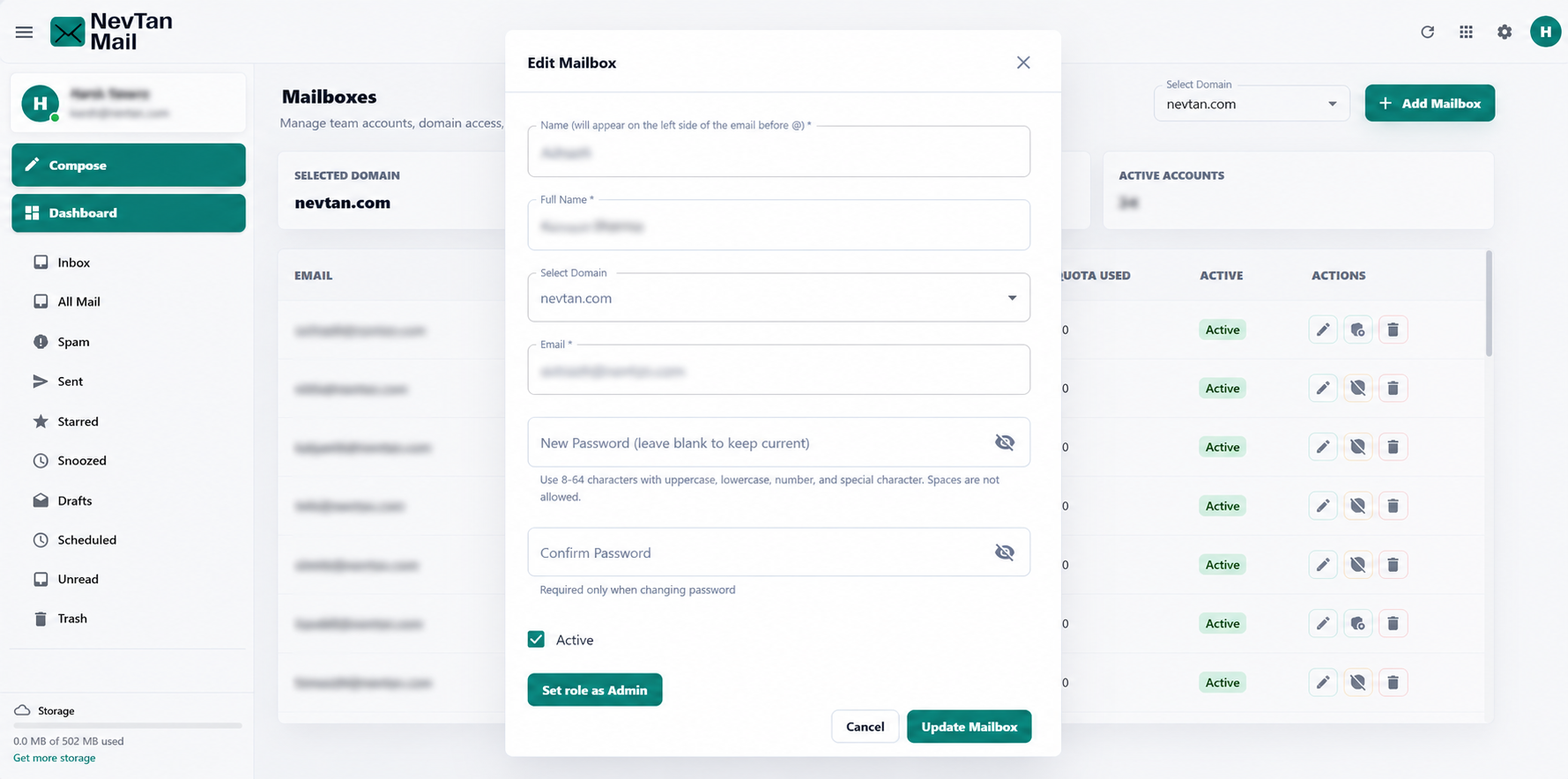
Open a mailbox to change its password (leave the field blank to keep the current one) or toggle whether it's Active. An inactive mailbox can't sign in.
Admin roles
From the mailbox editor you can Set role as Admin to give another mailbox admin access to the domain, or Revoke admin access to return it to a standard user. Revoking admin access signs that user out of their current session.
Still need a hand?
Our support team usually replies within one business day.
Email us at support@nevtan.com