
Mail settings
Aliases
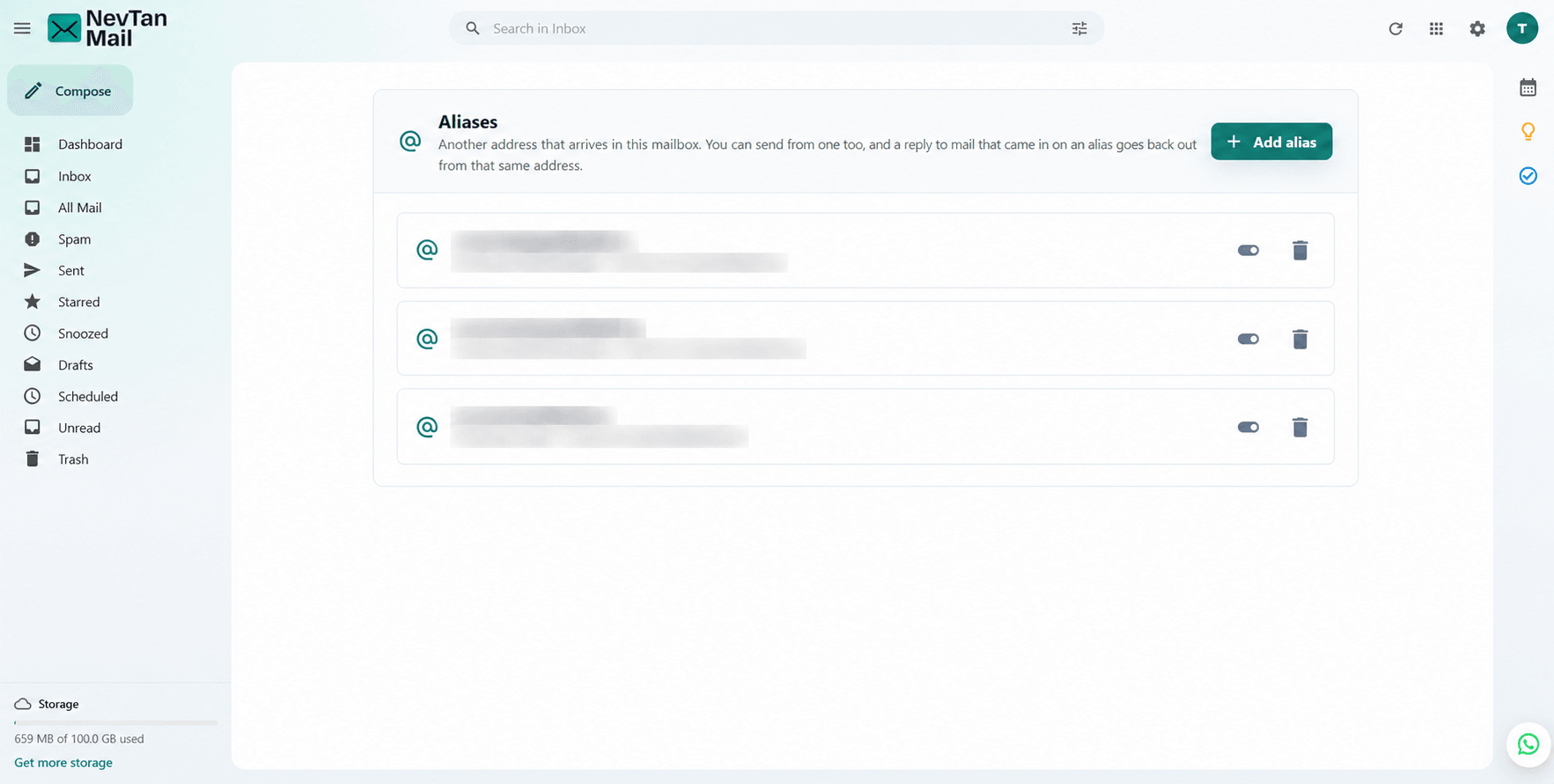
Send feedbackAn alias is an extra address that delivers into a mailbox you already have. Mail to sales@yourcompany.com can land in your own inbox, and you can reply as sales@ rather than as yourself.
Availability: This feature is part of the paid packages — it isn't included on the free plan. Check Plans & pricing for what each package includes, or open Admin → Subscription to see what your workspace is on.
What an alias is
An alias is an address, not an account. It has no password, no inbox of its own and no storage — everything sent to it arrives in the mailbox it points at. That's what makes it different from a mailbox, which is a separate account with its own sign-in and storage allowance. If someone needs their own inbox, create a mailbox instead; see Create & manage mailboxes.
Aliases are useful for addresses a role answers rather than a person:
- A shared address like
sales@,support@orinfo@that reaches whoever handles it. - A second address for yourself, so you can keep one kind of mail recognisable.
- An address you can retire later without closing anyone's account.
Create an alias
- Open Aliases: Select the Settings (gear) icon in the header, then choose Aliases under Mail settings.
- Add the address: Enter the part before the @ and pick the domain. You can use letters, numbers, and the characters
.-_+. - Choose where it delivers: Pick the mailbox the alias should deliver into. Mail to the alias arrives there from then on.
- Add a display name (optional): This is the name shown beside the address on mail you send from the alias — for example "Acme Sales".
- Save: The alias starts working straight away.
The domain has to be ready first
An alias can only be created on a domain that's verified and switched on. If the domain still needs its DNS records, the screen says so — see DNS records & email authentication. If you're not an admin, ask yours to finish the setup.
Send from an alias
Once an alias exists you can choose it as the From address when writing a message, so the reply goes back to the alias rather than to your own address. Your display name for that alias is shown beside it. You stay signed in as yourself the whole time — only the address on the message changes.
How many you can have
Your allowance is made of two parts added together:
- What your plan includes. Paid packages come with a number of aliases. See Plans & pricing for the current figure.
- Any extra aliases you've bought. You can buy more on top of the plan's share. These are billed monthly and renew and cancel like any other subscription, separately from your mail plan.
Older aliases are free
Aliases created before aliases were charged for are marked as yours to keep. They go on working, they're never billed, and they don't use up your allowance.
If an alias stops working
- It says the subscription lapsed. The aliases you bought stop delivering when that subscription ends, and mail sent to them is no longer delivered. Buying aliases again switches them back on.
- You can't create a new one. You've used your allowance. Either buy more, or delete an alias you no longer need to free one up.
- The domain is switched off or unverified. Aliases on it stop working until the domain is active again. An admin can check this under Admin → Domains.
- Mail isn't arriving. Check which mailbox the alias delivers into — it goes to that inbox, not to a folder of its own.