
Integrations
API keys
Send feedbackAn API key is the credential an application presents instead of signing in as you. You create it once on the Integrations screen, give it to the application that needs it, and revoke it the moment that application should no longer have access.
What an API key is
- A long, random secret that stands in for your sign-in. Every key begins with
nvt_live_. - Tied to your account, so it can do what you can do — and nothing beyond it.
- Valid until you revoke it. Keys do not expire on their own.
- Shown in full exactly once, at the moment you create it. Afterwards the screen shows only the first few characters, enough to tell your keys apart.
Create a key
- Open Integrations: Choose the settings icon, then Integrations under Mail settings in the Quick settings panel.
- Choose Create Key: The button sits at the top right of the API Keys card.
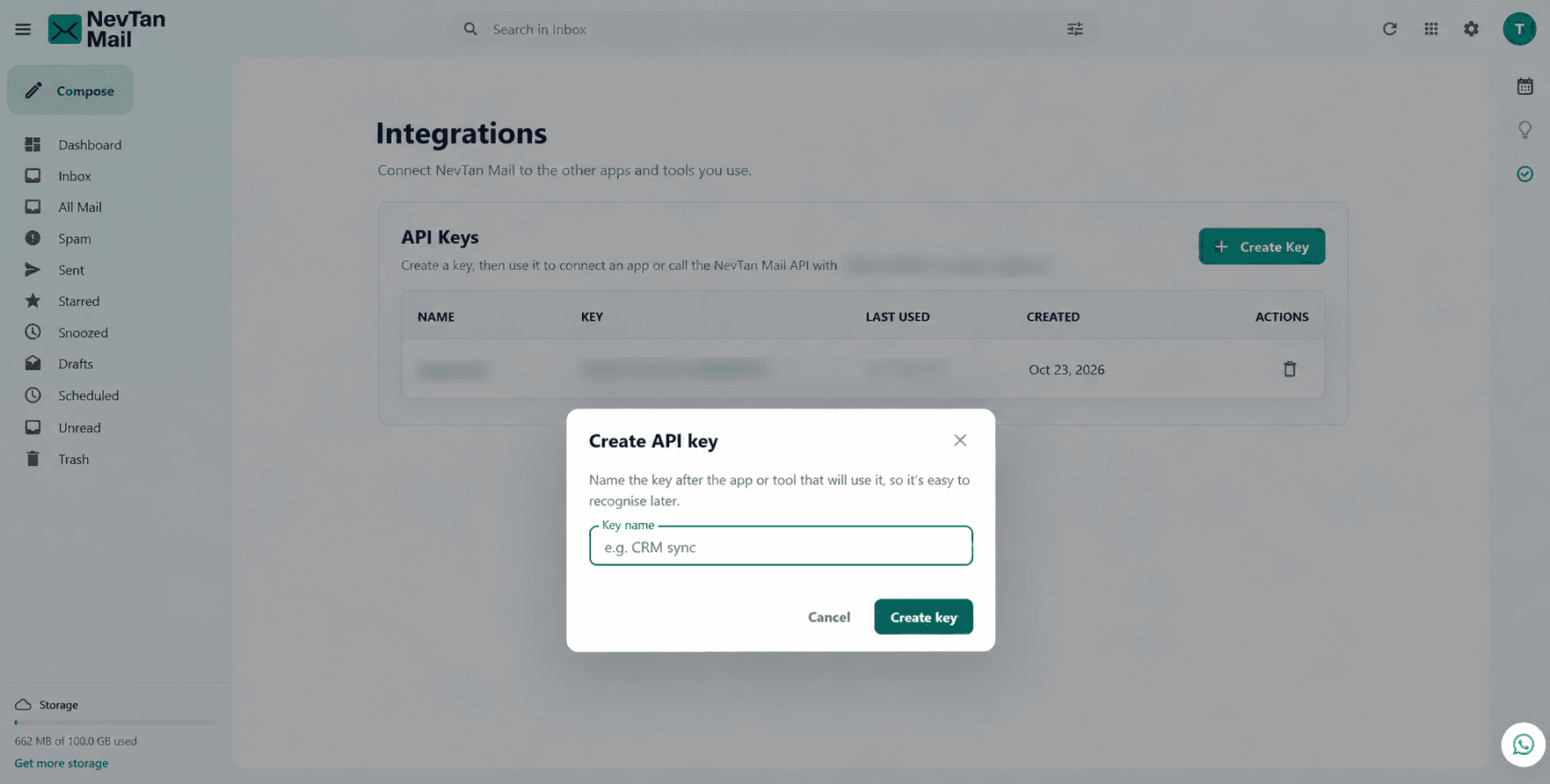
- Name it after the application: Use the name of the tool that will hold it — CRM sync, Invoice bot, Onboarding script. The name is how you will recognise it later when deciding what to revoke.
- Copy the key straight away: Use the Copy button in the dialog that appears, and paste it where it needs to go before closing.
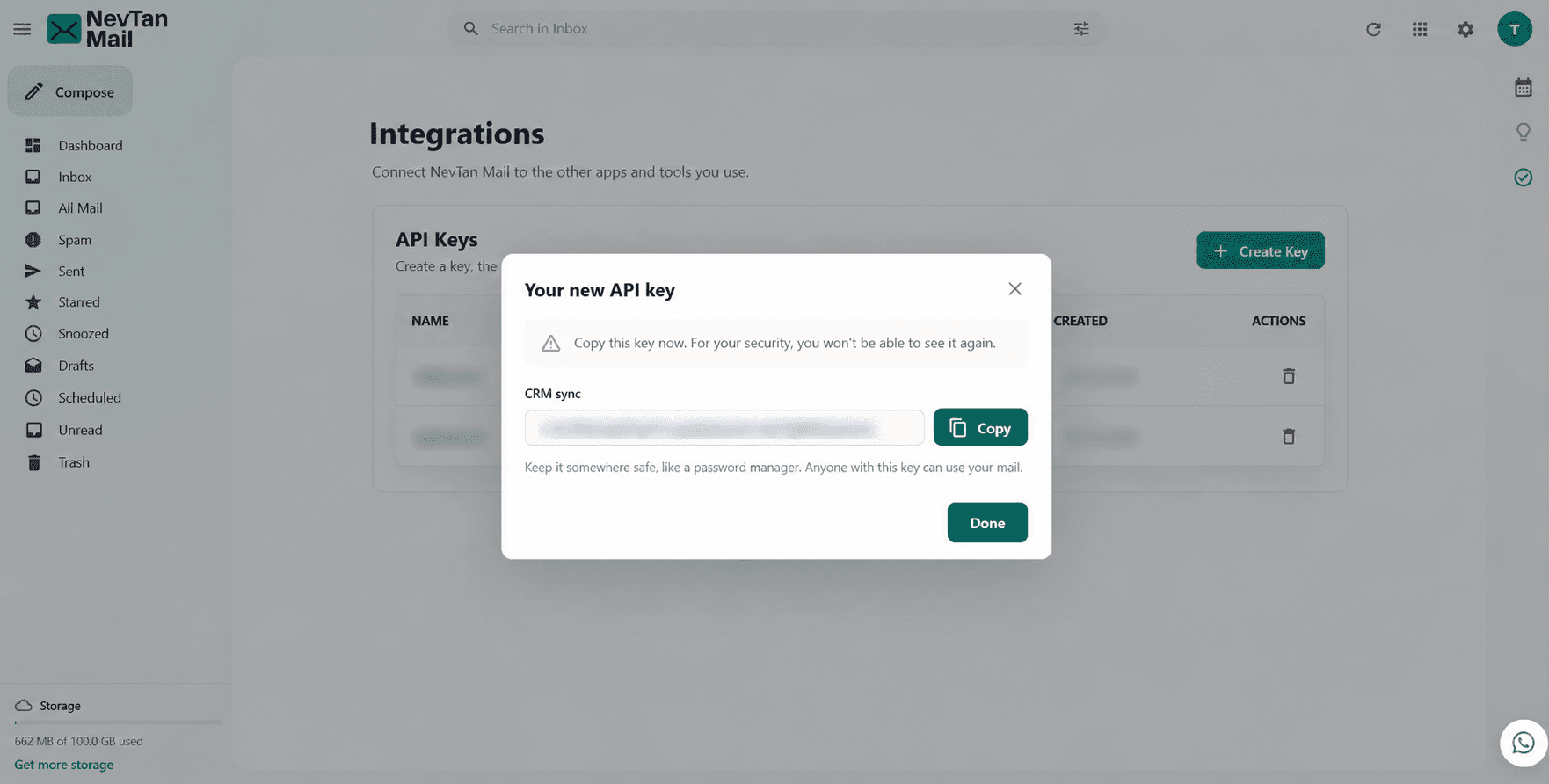
You only get one chance to copy it
NevTan Mail stores a one-way hash of the key, not the key itself, so nobody — including support — can show it to you again. If you close the dialog before copying, revoke the key and create another one. No harm is done.
Store it safely
Treat a key exactly as you would the password for the account that made it:
- Keep it in a password manager or your platform's secrets store, never in a note or a spreadsheet.
- Never commit it to source control. Read it from an environment variable or a secrets file that is not checked in.
- Never paste it into a shared document, ticket or chat — including when asking us for help.
- Use one key per application. Separate keys mean you can cut off one integration without breaking every other.
- Replace a key you think has leaked. Create the replacement, move the application across, then revoke the old one.
Use it in an application
Send the key on every request, in either of these headers:
- Authorization —
Authorization: Bearer nvt_live_…. Use this one unless you have a reason not to; it is what most HTTP libraries and integration platforms expect. - X-API-Key —
X-API-Key: nvt_live_…. Useful where a tool reserves the Authorization header for its own purposes.
A complete request looks like this:
curl https://nevtanemailapi.nevtan.com:5008/api/v1/me \
  -H "Authorization: Bearer nvt_live_xxxxxxxx…"
See the Mail API reference for everything you can call once that request succeeds.
What the list shows
| Column | What it tells you |
|---|---|
| Name | The name you gave the key when you created it. |
| Key | The opening characters only, so you can match a row to a key you hold. |
| Last used | When an application last made a request with it. A key no application has used yet reads Never — which is how you spot one that was created and then forgotten. |
| Created | When the key was made. |
Revoke a key
- Find the key in the list: Match it by name, or by the opening characters if two have similar names.
- Choose the delete icon: It sits at the end of the row, under Actions.
- Confirm: Choose Revoke key in the dialog.
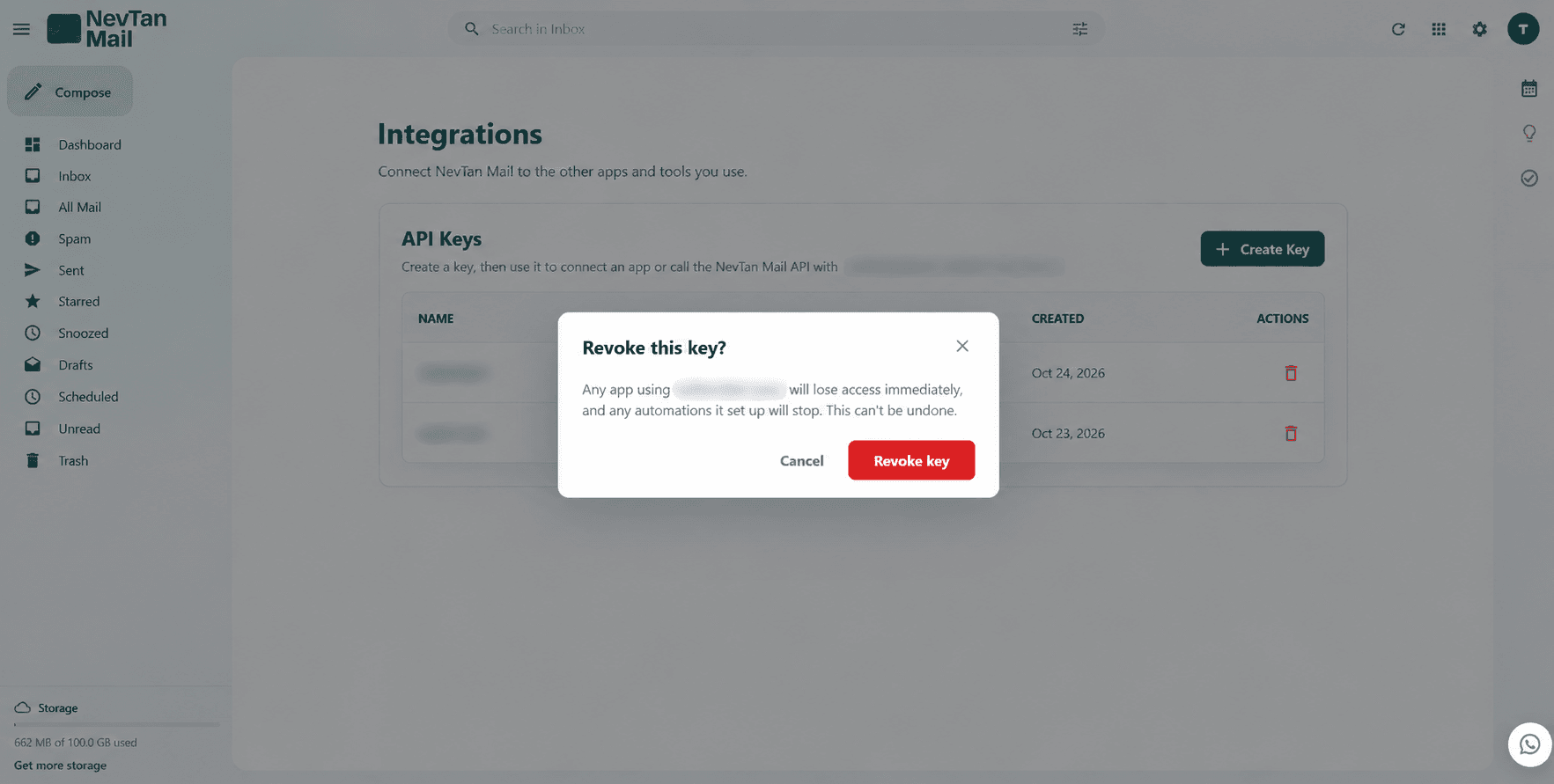
What happens immediately afterwards:
- Requests stop working at once. Anything still using the key receives an authentication error rather than data.
- Webhooks created with that key are turned off, so automations it set up stop too.
- It cannot be undone. A revoked key can never be reinstated — create a new one and move the application across.
Revoke before you investigate
If you suspect a key has been exposed, revoke it first and work out how afterwards. Creating a replacement takes seconds, and a key left live is the only part of the problem that is still getting worse.
Limits and rules
| Rule | Value |
|---|---|
| Requests per key | 120 per minute. Beyond that, requests are refused until the minute rolls over. |
| Key lifetime | Unlimited — a key works until it is revoked. |
| Times a key is shown | Once, when it is created. |
| Webhook subscriptions | Up to 50 per account. |
| Permissions | The same as the account that created the key. |