
Mail settings
Connect an email app (IMAP & SMTP)
Send feedbackYou can read and send your NevTan Mail from a desktop or phone email app instead of the browser. Any app that supports IMAP works — Outlook, Apple Mail, Thunderbird and the rest.
Availability: This feature is part of the paid packages — it isn't included on the free plan. Check Plans & pricing for what each package includes, or open Admin → Subscription to see what your workspace is on.
Find your server settings
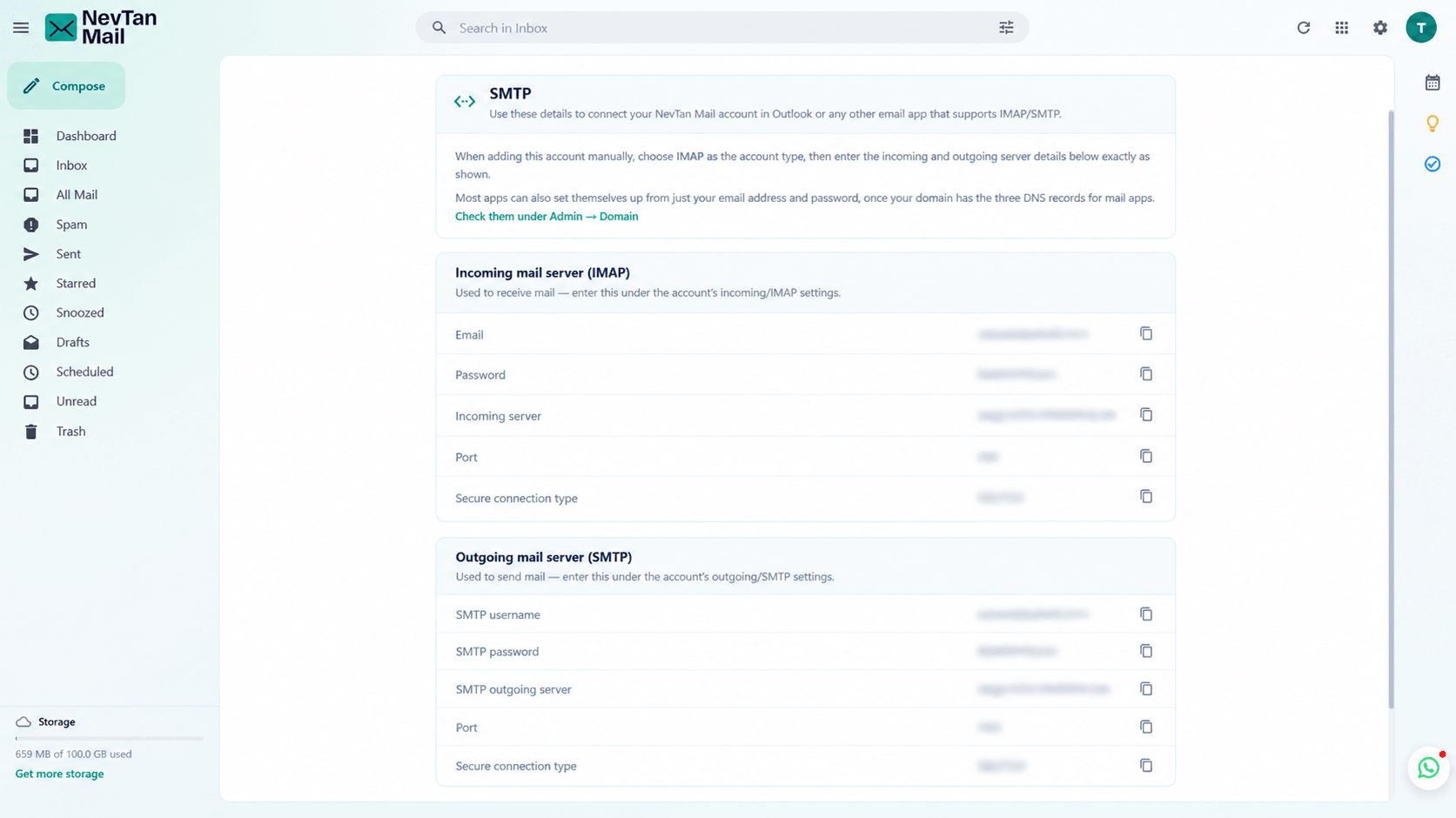
Select the Settings (gear) icon in the header, then choose SMTP under Mail settings. The screen shows the incoming and outgoing server details for your own mailbox, each with a copy button.
Don't see the server details?
If the screen offers an upgrade instead, your plan doesn't include SMTP & IMAP access. An admin can upgrade the workspace — see Plans & pricing.
Your server settings
Incoming and outgoing use the same server address, which the SMTP screen shows with a copy button. Copy it from there rather than typing it — the address depends on your workspace. The ports and security types are the same for everyone:
| Setting | Incoming mail (IMAP) | Outgoing mail (SMTP) |
|---|---|---|
| Server | The address on your SMTP screen | The same address |
| Port | 993 | 465 |
| Security | SSL/TLS | SSL/TLS |
| Username | Your full email address | Your full email address |
| Password | Your mailbox password | Your mailbox password |
If port 465 is blocked
Some office and campus networks block port 465. Use port 587 with STARTTLS instead — the same server, username and password. Your SMTP screen names this alternative too.
Match the security type to the port
Port 465 expects SSL/TLS; port 587 expects STARTTLS (some apps label it TLS). Choosing SSL/TLS on 587 fails to connect, and the error most apps show for it is unhelpfully vague — so if sending won't work, check this pairing first.
Use your full email address
The username is the whole address — you@yourcompany.com, not just the part before the @. The password is the one you sign in to NevTan Mail with; there is no separate app password.
Add your account to an email app
- Start adding an account: In your email app, add a new account and choose to set it up manually rather than automatically.
- Choose IMAP: Pick IMAP as the account type. Don't choose POP — it downloads your mail and removes it from the server, so it won't stay in step with the web app.
- Enter the incoming server: Fill in the IMAP server, port and security from the table above, with your full email address and password.
- Enter the outgoing server: Fill in the SMTP server and port the same way. Make sure the outgoing server is set to require authentication, using the same address and password.
- Finish and test: Save the account, then send yourself a message to check that sending and receiving both work.
IMAP keeps everything in step
Over IMAP your folders, read and unread state and deletions stay the same everywhere. Read a message on your phone and it shows as read in the browser too.
If it won't connect
- Check the port and security match. 465 goes with SSL/TLS, 587 with STARTTLS. Mixing them is the most common reason sending fails while receiving works.
- Try the other outgoing port. If 465 won't connect, your network may block it — switch to 587 with STARTTLS. Leave the incoming server on 993 with SSL/TLS either way.
- Check the username is the full address. Apps often prefill just the part before the @ once you type your name.
- Check the outgoing server is authenticating. If your app has a "My outgoing server requires authentication" box, tick it and reuse the incoming details.
- Confirm your plan still includes it. If the plan changed, the server details stop working. Open Settings → SMTP — an upgrade notice there means access has gone.
- Check your password. Changing your NevTan Mail password changes it for the email app too; update it in both places.
Still stuck? Email us at info@nevtan.com with the app you're using and the error it shows.